WPFresher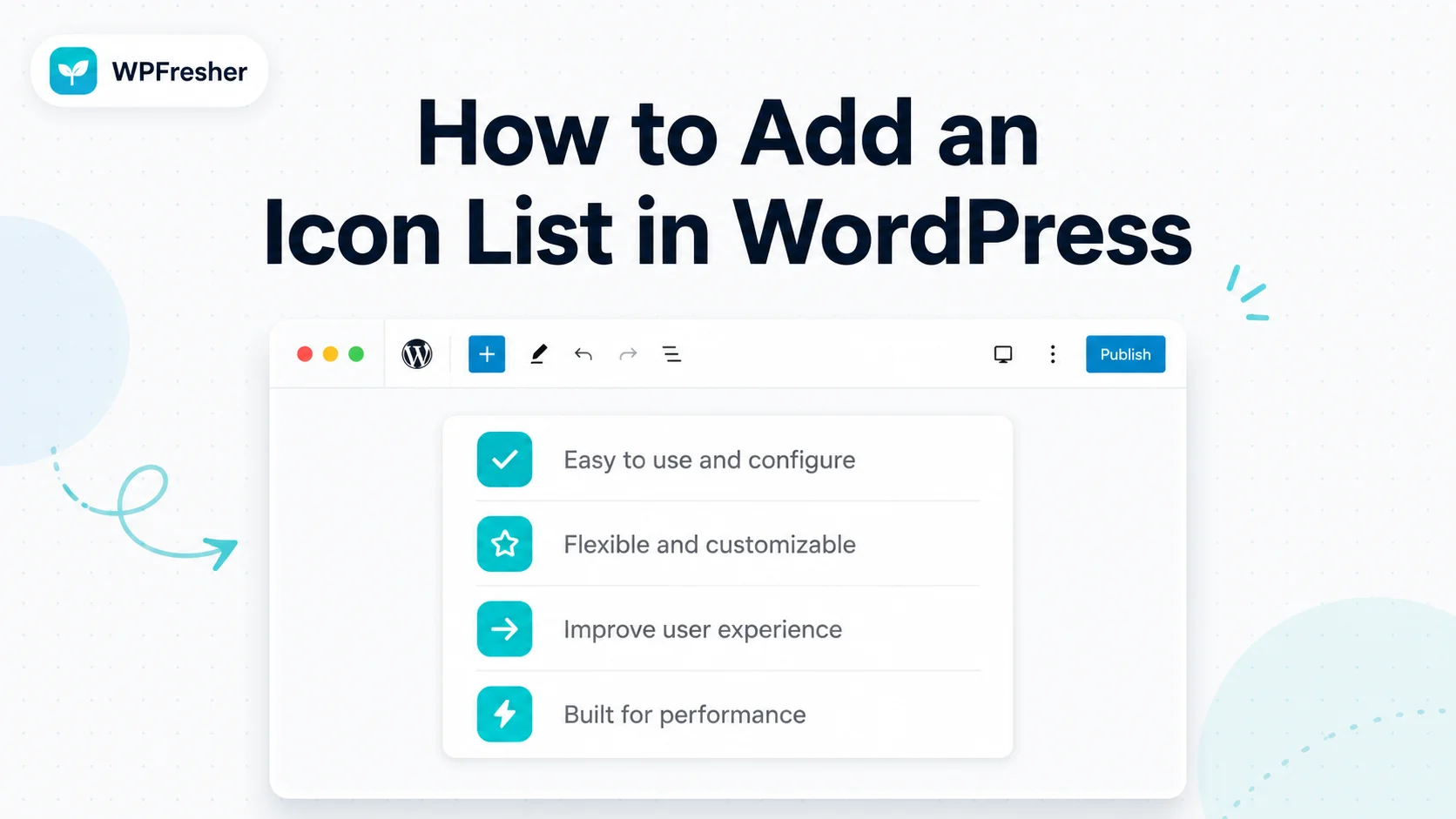
Plain bullet lists do their job, but they rarely make anyone stop and read. A list with a small icon next to each point is a different story. It breaks up the text, gives the eye something to land on, and makes your features, benefits, or steps far easier to scan.
The catch? WordPress doesn’t include an icon list out of the box. The core List block gives you text and bullets, and that’s it. No icons, no per-item styling, nothing visual.
In this guide, I’ll show you how to add an icon list in WordPress two ways: the manual route using only the tools already in your editor, and a much faster method using a free block plugin. By the end, you’ll know exactly which one fits your site, and you won’t need to touch a single line of code.
What Is an Icon List (and Why Use One)?
An icon list is a list where each item sits next to a small icon, usually a checkmark, arrow, star, or some symbol that matches the point being made. You’ve seen them everywhere: pricing tables with green ticks, “what’s included” boxes, feature comparisons, and step-by-step checklists.
They work for a simple reason. People skim before they read. When every line starts with a relevant icon, a visitor can understand the gist of your list in a second or two, long before they read a full sentence. That extra clarity tends to keep people on the page longer and helps important points actually get noticed.
Common places an icon list earns its keep:
- Pricing and plan pages (“what you get” lists)
- Service and feature sections
- Product benefit lists
- Onboarding or how-to checklists
- FAQ and documentation pages
If you find yourself building any of those, an icon list is usually a better choice than a plain bullet list.
Method 1: The Manual Way (No Plugin)
Let’s start with what’s possible using only the native block editor, so you can see the trade-offs honestly.
WordPress doesn’t have a real icon list block built in, so you have to fake it. There are two common workarounds.
Option A — Emoji in the List block. Open the standard List block and type an emoji at the start of each line, like ✅ or ➡️, followed by your text. It takes ten seconds and costs nothing. The downside is that emojis render differently on every device and operating system, you can’t control their color or size, and they often look out of place on a polished business page.
Option B — Columns plus the Image block. Insert a Columns block, drop an Image block into each column, upload an icon graphic, and add a text block beneath it. This gives you more control over how the icons look, but it’s slow to build, awkward to keep aligned, and a pain to edit later. Every icon is a separate image file you have to source, size, and upload yourself.
Both methods work in a pinch. But if you build icon lists more than once in a while, or you care about how they look on a real website, you’ll quickly outgrow them. That’s where a dedicated block makes a real difference.
Method 2: The Easy Way With a Free Icon List Block
The cleaner approach is to use a block plugin that adds a proper Icon List block to your editor. There are a few options on WordPress.org. The one I keep coming back to is Bloqra, a free, lightweight Gutenberg blocks plugin, because its Icon List block is genuinely nice to use and it doesn’t slow your site down with assets you’re not using.
Here’s how to set it up.
Step 1: Install and Activate Bloqra
From your WordPress dashboard, go to Plugins → Add New Plugin, search for Bloqra, then click Install Now and Activate. That’s the whole setup. There’s nothing to configure before you start.
Step 2: Add the Icon List Block
Open the post or page where you want your list. Click the block inserter (the + button), search for Icon List, and add it. You’ll get a starter list with an icon already in place, so you’re not staring at a blank block wondering what to do next.
Step 3: Type Your Items
This is the part I like most. Each item in the list is its own block, so editing feels exactly like the core List block you already know. Type your text, press Enter to start a new item, and keep going. No clunky sidebar repeater fields, no adding rows through a settings panel. It just behaves the way a list should.
Step 4: Choose Your Icons
You can set one default icon for the whole list, which is perfect for a checklist where every line gets the same green tick. Need a specific item to stand out? Click that item’s icon and swap it for a different one. Bloqra ships with over 1,900 Lucide icons, so you’ll find something that fits almost any point you’re making.
Step 5: Pick a Layout and Style
In the block settings on the right, you can switch the list between vertical, horizontal, and grid layouts. Vertical is your classic top-to-bottom list. Horizontal works well for a row of quick highlights. Grid is handy for a tidy features section. You can also style the icons and the text independently, adjusting color, size, and spacing until it matches your theme.
Step 6: Add Links (Optional)
If a list item should point somewhere, like a feature that links to its own page, you can add a link directly to that item. Then publish or update your page, and you’re done.
The whole process takes a couple of minutes, and editing it later is just as quick, which is the real win over the manual methods.
Tips for Better-Looking Icon Lists
A few small habits make a big difference:
- Keep icons consistent: Using one icon style throughout looks far more professional than mixing random symbols.
- Match icon color to your brand: A single accent color across all icons ties the list to the rest of your design.
- Don’t overdo the size: Icons should support the text, not shout over it. Slightly larger than the text is usually right.
- Use meaningful icons: A checkmark for benefits, an arrow for steps, a star for highlights. The icon should reinforce the point, not just decorate it.
- Mind your spacing: A little breathing room between items makes the whole list easier to read.
Frequently Asked Questions
Does WordPress have a built-in icon list block?
No. The WordPress core editor includes a List block for text and bullets, but it has no icon support and no per-item styling. To add icons to a list, you either build a workaround manually or use a block plugin that includes a dedicated Icon List block.
How do I add an icon list in WordPress without code?
Install a free block plugin such as Bloqra, then add its Icon List block to any post or page. You type your list items like a normal list, choose your icons, pick a layout, and publish. No HTML or CSS is required at any point.
Can I use different icons for each list item?
Yes. With an Icon List block you can set one default icon for the entire list and then override individual items with a different icon whenever you want a specific point to stand out.
Will an icon list plugin slow down my website?
It depends on the plugin. Lightweight block plugins like Bloqra are built to load only the assets a page actually uses, so a single icon list won’t meaningfully affect your site speed. Heavier all-in-one builders can add more overhead, so it’s worth choosing a focused, performance-minded plugin.
Are icon lists good for SEO?
Indirectly, yes. Icon lists make content easier to scan, which can keep visitors on the page longer and help them engage with your key points. Better readability and stronger user signals support your overall SEO, even though the icons themselves aren’t a direct ranking factor.
Final Thoughts
You don’t need a page builder or any code to add a clean, professional icon list to your WordPress site. If you only need one quick list and don’t mind the rough edges, the manual emoji trick will get you there. But if you want lists that look right, stay consistent, and are easy to update, a free Icon List block is the better tool by a mile.
If you’d like to try the method I walked through here, you can grab Bloqra from WordPress.org for free and have your first icon list live in a couple of minutes. Once you’ve used it on a page, I’d love to hear how it went in the comments below.
Want more WordPress tips like this? Check out our other beginner guides on the WPFresher blog.
Discover more from WPFresher
Subscribe to get the latest posts sent to your email.