WPFresher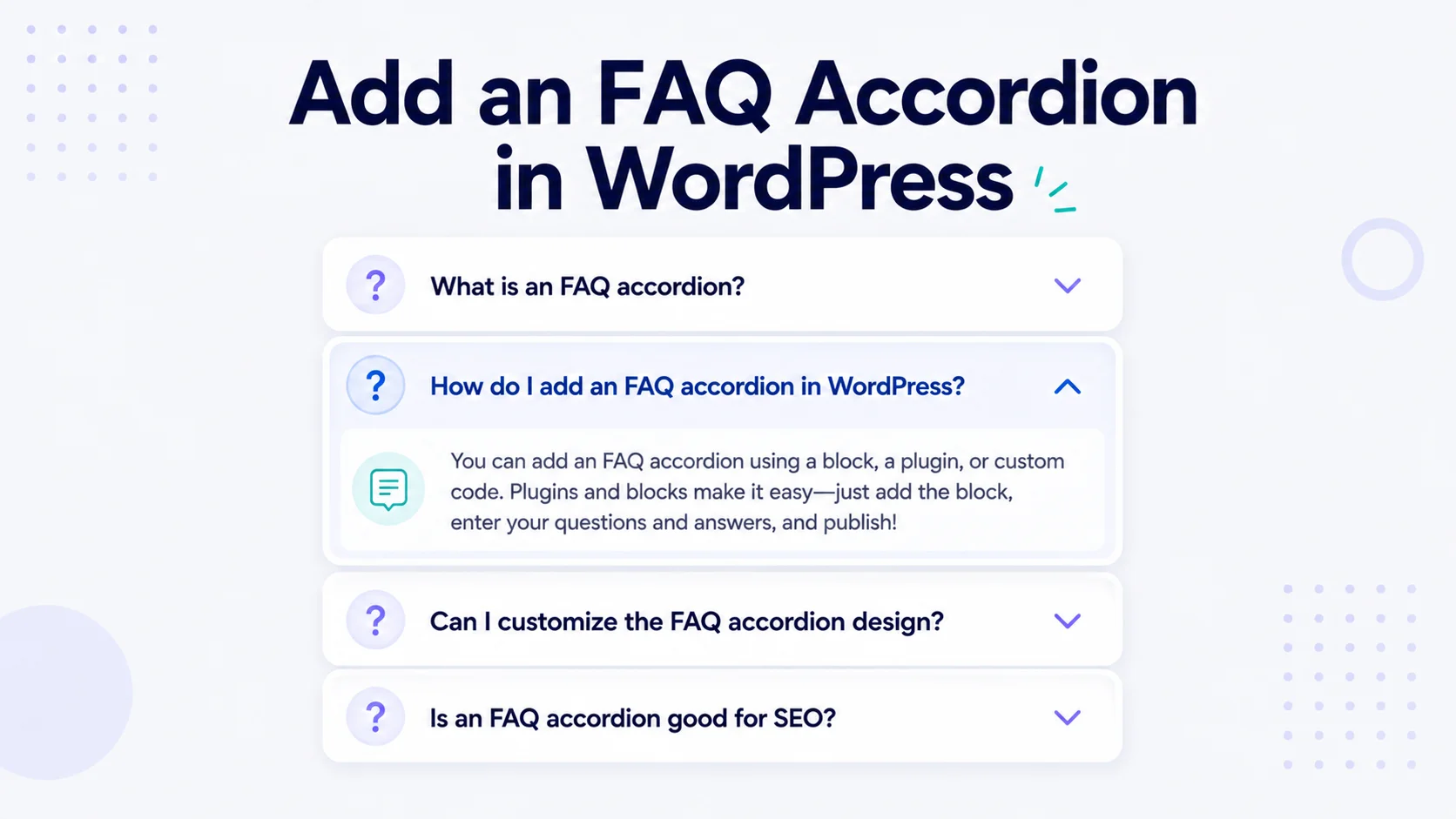
A good FAQ section does quiet, valuable work. It answers the questions holding people back from buying, cuts down on repetitive support emails, and reassures visitors who aren’t quite ready to reach out. The problem is that a long list of questions and answers, all expanded at once, eats up screen space and looks like a wall of text.
An accordion fixes that. Instead of showing every answer at once, it lists your questions as clickable headers that expand to reveal the answer only when someone taps them. The section stays compact and easy to scan, and readers open just the parts they care about.
In this guide, I’ll show you how to add an FAQ accordion to WordPress without any code, so you can turn a cluttered Q&A into a clean, tidy section in a few minutes.
Why Use an Accordion for Your FAQs?
Accordions are a natural fit for FAQ content, and a few other things too:
- They save space. A dozen questions collapse into a short, clickable list instead of a long scroll.
- They’re easy to scan. Visitors can read your questions at a glance and open only what’s relevant.
- They improve the experience. Letting people control what they expand feels cleaner than dumping everything on screen.
- They work beyond FAQs. Service details, product specs, documentation, and course outlines all suit the same collapsible format.
The result is a page that looks organized and lets readers find answers quickly, which tends to keep them around longer.
The Manual Way (and Why It’s a Hassle)
WordPress doesn’t include an accordion in its core blocks. To build one by hand, you’d need custom HTML for the structure, CSS for the styling, and a bit of JavaScript to handle the expanding and collapsing, then somewhere safe to put all that so a theme update doesn’t wipe it out.
That’s a lot of moving parts for something as routine as an FAQ section, and it’s out of reach if you’re not comfortable with code. A block that does it for you is far simpler.
The Easy Way: Add an Accordion Block
The simplest approach is a plugin that adds an accordion block to your editor. For this guide, I’ll use Bloqra, a free, lightweight Gutenberg blocks plugin whose Accordion block is built exactly for collapsible content like FAQs.
Here’s how to set it up.
Step 1: Install Bloqra
In your WordPress dashboard, go to Plugins → Add New Plugin, search for Bloqra, then click Install Now and Activate.
Step 2: Add the Accordion Block
Open the page or post where you want your FAQ, click the block inserter (the + button), search for Accordion, and add it. You’ll get a collapsible panel ready to fill in.
Step 3: Add Your Questions and Answers
Type your first question into the panel’s header, then add its answer in the content area below. Add more panels for each additional question. Because it’s a block, editing feels just like working with any other content in the editor, so you can format answers with links, lists, and bold text as needed.
Step 4: Customize the Look
Adjust the block’s settings to match your site, tweaking colors, spacing, and styles so the accordion fits your design rather than standing out awkwardly. Bloqra keeps things lightweight, so you get the feature without slowing your page down.
Step 5: Publish
When you’re happy with it, publish or update the page. Your FAQ now appears as a clean set of collapsible questions that expand on click.
Where an FAQ Accordion Helps Most
A few high-value places to use one:
- Product and pricing pages, to handle objections right where people decide
- Service pages, to explain details without overwhelming the main pitch
- Support and documentation, to organize common questions
- Landing pages, to answer last-minute doubts before a signup or purchase
A Note on FAQs and SEO
Beyond the tidy layout, FAQ content is genuinely useful for search. Clear questions and answers match the way people phrase searches, which can help your page surface for those queries. If you want to go a step further, you can add FAQ schema markup with an SEO plugin like Rank Math or Yoast, which makes your questions eligible to appear as rich results in search. The accordion handles the on-page experience; the schema handles how search engines read it, and they pair well together.
Tips for a Better FAQ Section
- Write real questions. Phrase headers the way your customers actually ask them.
- Keep answers concise. Get to the point; link out if more detail is needed.
- Order them sensibly. Put the most common questions first.
- Don’t bury the essentials. If something is critical, make sure it’s easy to find, not hidden three panels down.
Frequently Asked Questions
No. The WordPress core editor doesn’t include an accordion. To add collapsible sections, you can use a free blocks plugin like Bloqra, which provides an Accordion block built for FAQs and similar content.
Install an accordion block plugin, add the Accordion block to your page, and fill in each question and answer. The block handles the expanding and collapsing for you, so there’s no HTML, CSS, or JavaScript to write.
It helps in two ways. The clear question-and-answer format matches how people search, and it improves readability, which supports engagement. Adding FAQ schema markup on top can make your questions eligible for rich results in search.
Yes. Collapsible panels work well for service details, product specifications, documentation, and any content you want to keep tidy and let readers expand on demand.
Yes. Bloqra is free on WordPress.org and includes the Accordion block along with other lightweight blocks for the editor.
Final Thoughts
An FAQ accordion is one of the easiest upgrades you can make to a busy page. It turns a long list of answers into a clean, scannable section, helps visitors find what they need, and you don’t have to write a line of code to add one.
If you’d like to try it, install Bloqra for free and build your first accordion in minutes. For more WordPress how-tos, browse the WPFresher blog, and let me know in the comments where you’ll add yours.
Discover more from WPFresher
Subscribe to get the latest posts sent to your email.