WPFresher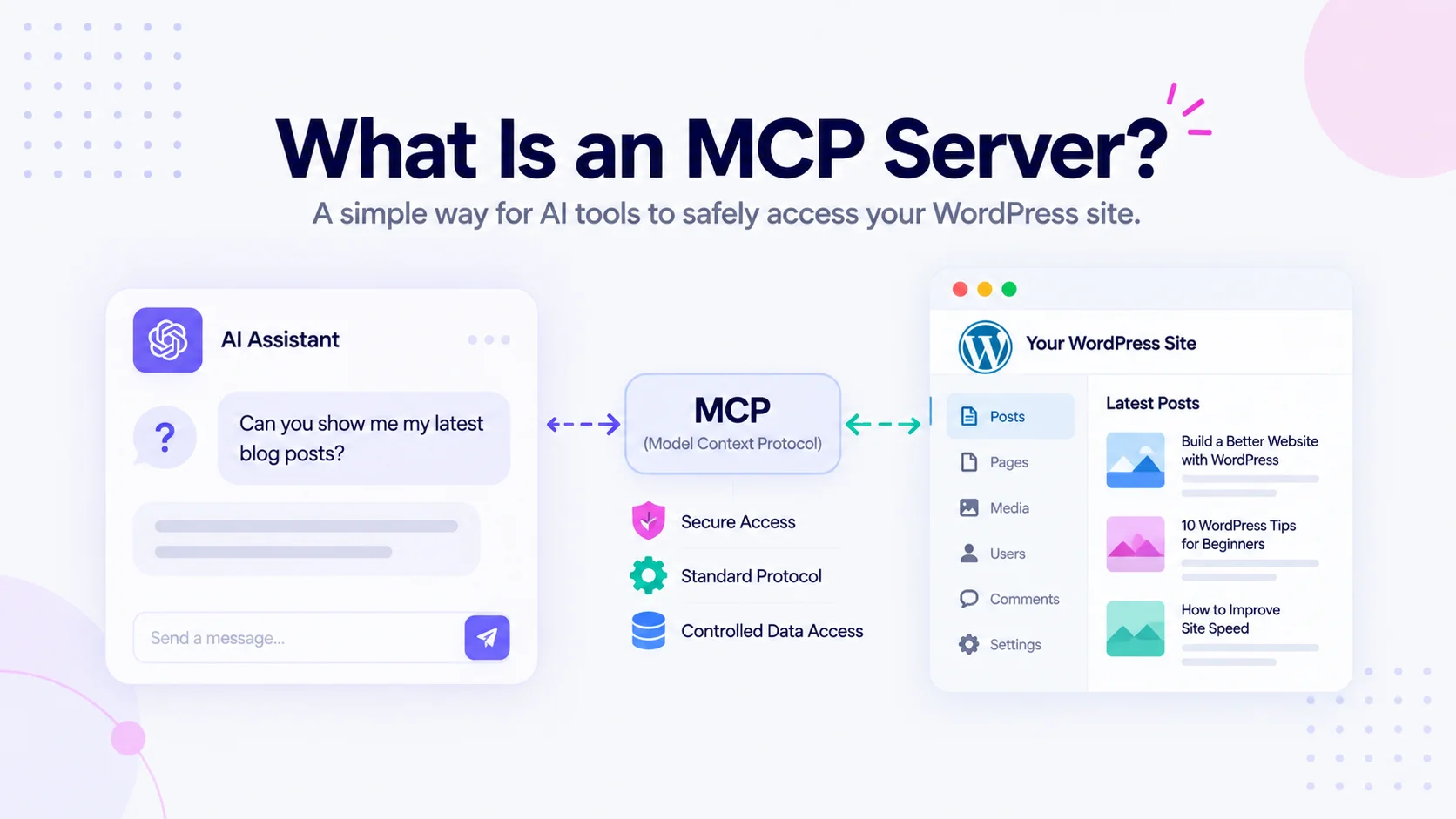
If you’ve spent any time with AI tools lately, you’ve probably seen the term “MCP” pop up without much explanation. It sounds like developer jargon, and most articles about it are written for people building AI systems, not people running websites.
But MCP is genuinely worth understanding if you use WordPress, because it changes what an AI assistant can do for you. Not in a vague, futuristic way, but in a practical “your AI can now read your error log instead of asking you to paste it” way.
Here’s what it actually is, in plain terms, and how to try it on your own site.
The Problem MCP Solves
Think about how you use an AI assistant with WordPress today. You ask a question, and then you do the legwork: copy the error message, paste in the plugin list, describe your setup, paste the post content, and then manually apply whatever the AI suggests.
The AI is capable, but it’s working blind. It can only reason about what you managed to paste into a chat window. It can’t look at your site, and it certainly can’t change anything.
That’s a big limitation, and it’s not because the AI isn’t smart enough. It’s because there was no standard way for an AI to talk to an outside system like your website.
So What Is an MCP Server?
MCP stands for Model Context Protocol. It’s an open standard that defines how an AI client connects to an external system and works with it.
Here’s the simplest way to think about it. A system that supports MCP exposes a set of tools, which are just named actions the AI is allowed to perform, like “list the installed plugins” or “search the posts” or “update this post.” The AI looks at what tools are available and decides which ones it needs to answer your question.
An MCP server is the piece of software that exposes those tools. So a WordPress MCP server is a plugin that turns your site into something an AI agent can actually read and operate, rather than something you have to describe.
The client side is whatever AI tool you already use, such as Claude, ChatGPT, Cursor, VS Code, or Windsurf.
What This Looks Like in Practice
Once your site is connected, the copy-paste loop disappears. Instead you can simply ask:
- “Why is my site showing a 500 error?” and the AI reads the error log itself, checks your PHP version, and sees which plugins updated recently.
- “Which of my plugins need updating?” and it tells you, without you opening the Plugins screen.
- “Find every post that mentions our old pricing” and it searches your content and shows you.
- “Draft a post from these notes and add a featured image” and it creates the draft and attaches the image.
- “Clean up my comment moderation queue” and it reviews pending comments, approving the real ones.
The AI stops guessing about your site and starts working with it.
The Obvious Worry: Is This Safe?
This is the right question to ask, and the answer depends entirely on which MCP server you use.
The reassuring part is that a well-built one gives you granular control. A good WordPress MCP server should:
- Be off by default, exposing nothing until you deliberately enable it
- Tie every connection to a WordPress user, so an AI can never do anything that user couldn’t do in wp-admin
- Let you choose exactly which tools each connection can use, with a read-only option
- Keep write actions disabled until you turn them on individually
- Log every action so you can see what the AI actually did
- Allow instant revocation of any connection
The other question worth asking is where your data goes. Some AI plugins are wrappers that send your content to a third-party service. A self-hosted MCP server doesn’t work that way: it runs inside your own WordPress install, and your AI client connects to you. Nothing is shipped off to another platform.
How to Try It on Your Site
If you want to see this working, Sokket is a free plugin that turns your WordPress site into its own MCP server, and it covers all the safeguards above.
The setup is short:
- Install and activate it from Plugins → Add New. Nothing is exposed yet, since the server is disabled by default.
- Enable the server under its Settings screen, then copy your endpoint URL.
- Create a credential, choosing which WordPress user it runs as and leaving read-only enabled to start.
- Connect your AI client using the setup command or config the plugin generates for Claude, ChatGPT, Cursor, VS Code, or Windsurf.
Then ask your assistant what version of WordPress your site is running. If it answers correctly, you’re connected.
My advice for a first run: keep it read-only. Let the AI look around, answer questions, and diagnose things for a while before you enable any tools that can make changes. You’ll get a feel for what it’s useful for without any risk.
Is This Worth Your Time?
If you only occasionally ask an AI general WordPress questions, probably not yet. But if you regularly debug sites, manage content at volume, or maintain sites for clients, this removes a real chunk of tedious work. The difference between an assistant that guesses and one that can actually look is bigger than it sounds.
It’s also worth knowing about simply because MCP is becoming the standard way AI tools connect to everything. Understanding it now means you’ll recognise what’s happening as more of your tools start supporting it.
Frequently Asked Questions
MCP stands for Model Context Protocol. It’s an open standard that lets AI clients connect to external systems and use a defined set of tools, rather than relying on information pasted into a chat.
It’s a plugin that exposes your WordPress site’s capabilities as tools an AI agent can call, so an assistant like Claude or ChatGPT can read and manage your site directly instead of being told about it second-hand.
No. Setting up a WordPress MCP server involves installing a plugin, enabling it, creating a credential, and pasting a generated config into your AI client. No coding is required, though the benefits are largest for people who work on sites regularly.
It depends on the plugin. A self-hosted MCP server runs inside your own WordPress install and makes no outbound requests, so your AI client connects to your site rather than your data being sent elsewhere. Always check this before installing.
Yes, with a well-built MCP server. You should be able to bind each connection to a specific WordPress user, pick exactly which tools it can call, keep it read-only, and revoke access instantly.
Claude, ChatGPT, Cursor, VS Code, and Windsurf all support MCP connections, along with a growing list of other clients.
Final Thoughts
MCP isn’t hype so much as plumbing, and it’s the plumbing that finally lets AI assistants work with your website instead of just talking about it. For anyone who maintains WordPress sites, that’s a meaningful shift.
If you’d like to try it, install Sokket for free and connect your AI client in a few minutes. For more WordPress guides, browse the WPFresher blog, and tell me in the comments what you’d want an AI to handle on your site.
Discover more from WPFresher
Subscribe to get the latest posts sent to your email.