WPFresher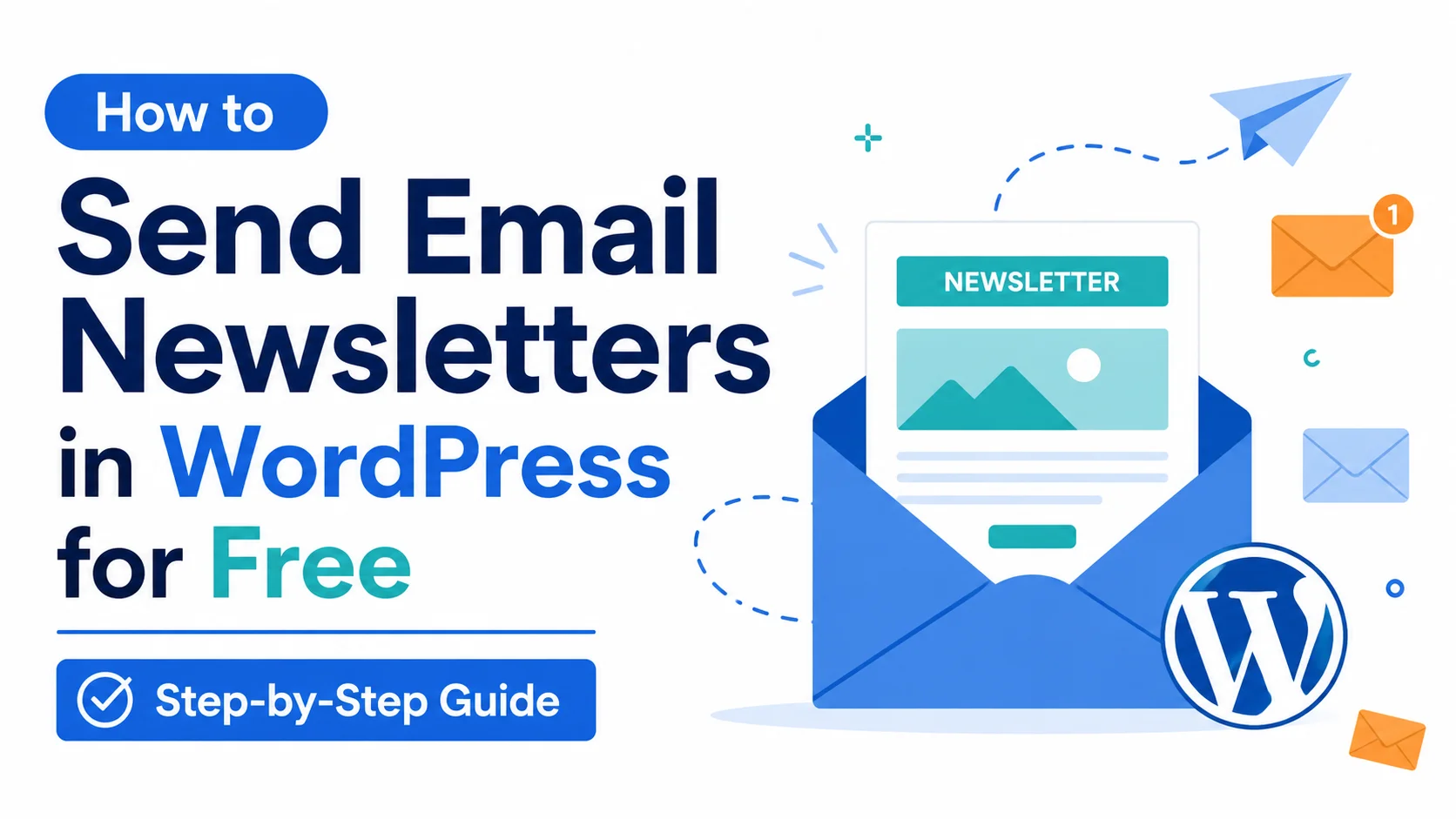
Most WordPress site owners know email newsletters are worth doing. Research consistently backs it up, email outperforms social media for click-through rates, and subscribers who opt into your list are far more valuable than a follower who might or might not see your next post.
But when people actually sit down to set it up, they hit the same wall every time. Mailchimp wants a credit card. ConvertKit starts at $25/month. ActiveCampaign requires a commitment before you’ve sent a single email.
For a growing blog or a small business site, that overhead simply doesn’t make sense early on. The good news is you don’t need any of those services to get started. You can send email newsletters directly from your WordPress dashboard, completely free, using a plugin that handles campaigns, subscribers, and basic automation, no monthly fees attached.
This guide covers the whole setup, start to finish.
If you’re still on the fence about whether email is worth pursuing for your site, this article makes the case: Why Building an Email List is So Important for Your Business
What You’ll Need Before You Start
Before installing anything, run through this checklist:
A self-hosted WordPress website: This guide is for WordPress.org sites, the ones where you own the hosting. WordPress.com free and basic plans don’t allow third-party plugins.
A domain-based email address: Something like newsletter@yoursite.com or hello@yoursite.com. You can technically use a Gmail address, but emails sent from free addresses on behalf of a custom domain are far more likely to end up in spam.
SMTP credentials from your hosting provider: WordPress has a built-in mail function called wp_mail, but it’s unreliable for sending to a list of subscribers. Configuring proper SMTP, which routes your emails through your host’s mail server, makes a significant difference in deliverability. Most shared hosts (Namecheap, SiteGround, Bluehost, etc.) provide this through cPanel at no extra cost.
If you’re unsure about getting SMTP working with your host setup, this guide covers it in detail: How to Use cPanel Webmail with Vercel Hosting
Choosing a Free Newsletter Plugin for WordPress
There are a few solid options worth knowing:
MailPoet is one of the most established newsletter plugins in the WordPress ecosystem. The free version works well for beginners, but it ties you to their sending service, which caps free accounts at 1,000 subscribers. After that, you either pay or switch to your own SMTP.
Newsletter is a classic plugin that has been maintained for years. The interface is functional but feels dated compared to newer options. It covers the basics reliably.
Send Emails by BeautifulPlugins is a newer option worth considering if you want a cleaner, more modern option. The free version supports newsletter campaigns, basic automation, subscriber management, and email templates, all connected to your own SMTP setup, which keeps you in control of your deliverability rather than dependent on a platform’s free-tier limits.
You can find it by searching “Send Emails” in your WordPress plugin directory or directly at [wordpress.org/plugins/send-emails].
For this tutorial, we’ll use Send Emails. The setup process is largely the same across similar plugins, so you can follow these steps with any of the options above.
Step 1: Install and Activate the Plugin
- Log into your WordPress admin dashboard
- Go to Plugins → Add New Plugin
- In the search bar, type Send Emails
- Find the plugin by BeautifulPlugins and click Install Now
- Once installed, click Activate
After activation, a new item will appear in your left-hand dashboard menu. Click it to open the plugin’s main panel.
Step 2: Configure Your Sender Settings
Before anything gets sent, you need to tell the plugin who the emails are coming from and how they’re being delivered.
Go to the plugin’s Settings panel and fill in:
Sender name: what subscribers see in their inbox “From” field. Use your site name or brand, not a personal name, unless your personal brand is the whole point.
Sender email address: Use your domain email here. Sending from @gmail.com or another free address increases your chances of hitting spam filters significantly.
SMTP configuration: enter your mail server host, port, username, and password. You’ll find all of this in your hosting cPanel under Email Accounts or Email Configuration. The most common ports are 587 (TLS, recommended) or 465 (SSL).
Save these settings and use the built-in test email function to send yourself a message. Check that it arrives in your inbox, not your spam folder, and that the sender name and address look exactly right. Fix anything that’s off before you move on. A misconfigured sender setup is the single most common reason newsletter emails disappear.
Step 3: Build Your Subscriber List
You can’t send to anyone without subscribers. There are two ways to get people into the system:
Import existing contacts. If you’ve already been collecting emails through a contact form, a previous tool, or even a plain spreadsheet, you can upload them as a CSV file. The plugin handles imports in the Subscribers section. Just make sure your columns map correctly to the email address and name fields before you upload.
Grow your list organically with an opt-in form. This is how long-term list building works. The plugin lets you create embeddable signup forms that you can place:
- In your sidebar as a widget
- At the end of blog posts using a shortcode
- On a dedicated landing page
- Anywhere else a shortcode is supported
The most important thing about a signup form is not its placement; it’s the offer behind it. “Subscribe to my newsletter” gets ignored. “Get one practical WordPress tip every Tuesday” gives people a reason. “Download my free WordPress speed checklist” gives them something tangible.
The more specific and useful your reason to subscribe, the better your conversion rate from site visitors to active subscribers.
Step 4: Write and Send Your First Campaign
With at least a few subscribers in your list, even if it’s just yourself for testing, you’re ready to send something.
Go to Campaigns → New Campaign inside the plugin.
You’ll be asked to fill in:
Campaign name. This is internal only. Your subscribers won’t see it. Name it something you’ll recognise later, like “June 2026 Newsletter” or “Welcome Email Test.”
Subscriber list. Select which list to send to.
Email content. Depending on which plugin you’re using, you’ll have either a block-based editor or a drag-and-drop builder. Fill in your:
- Subject line
- Preview text (the short snippet that appears after the subject line in most email clients) aims for 40–80 characters
- Email body content
A note on subject lines specifically. This single line determines whether your email gets opened or archived unread. A few things that actually hold up in practice:
Keep it under 50 characters. Anything longer gets cut off on mobile, and most people read email on their phones.
Be specific. “June newsletter” gives no one a reason to open. “3 WordPress plugins that saved me 4 hours last week” does.
Avoid common spam-trigger words in the subject line itself, “free,” “urgent,” and excessive punctuation like !!! and words like “limited offer” push emails toward spam filters.
Schedule or send. For a first email, sending immediately lets you verify how it looks across different email clients (Gmail, Outlook, Apple Mail all render HTML email slightly differently). After that, scheduling at a consistent time every Tuesday at 10 am, for example, builds an expectation with your audience. They start to look for your emails.
Step 5: Review Your Campaign Results
Give your campaign 24–48 hours after sending, then check the analytics panel.
Open rate: What percentage of subscribers opened the email? On a small, fresh list with people who genuinely opted in, 25–40% is realistic. Consistently below 15–20% usually means the subject lines need work or emails are landing in spam.
Click-through rate: what percentage clicked at least one link. This measures whether the content itself was compelling enough to act on. A 2–5% CTR is reasonable for general content newsletters; higher for highly targeted niches or content closely tied to a specific tool or problem.
Unsubscribes: A few per campaign is normal and healthy. A spike means something went wrong: the content was off-topic, the sending frequency was too high, or you didn’t deliver what you promised when people signed up.
Use these numbers as direct feedback. They’re the most honest signal you have about what your audience actually wants to hear from you.
Getting Your Emails Into Inboxes, Not Spam
Deliverability separates newsletters that work from ones that vanish. Here’s what matters:
Authenticate your domain: SPF, DKIM, and DMARC are three DNS records that tell inbox providers your emails are genuinely from you. Without them, you’re fighting spam filters on every send. Most hosting control panels include a guide for setting these up. It takes about 20–30 minutes to set up once and permanently removes a recurring deliverability risk.
Use a custom domain email address: Already covered, but worth repeating. Domain-based email addresses are more trusted by inbox providers than Gmail or Outlook personal accounts.
Don’t blast stale contact lists: If you collected emails years ago and haven’t been in touch since, don’t send a campaign to all of them at once. Start with recent, actively engaged contacts and gradually build your sending volume over a few weeks.
Prune inactive subscribers regularly: Remove hard bounces immediately. These are permanent delivery failures, and continuing to send to them hurts your sender’s reputation. Remove subscribers who haven’t opened anything in six months or more. A list of 500 engaged readers consistently outperforms a list of 5,000 with 90% inactive.
When to Consider Upgrading or Switching
The free plugin approach works well for getting started and for lists in the hundreds. A few scenarios where you might need more:
- You’re sending to thousands of subscribers and need enterprise-grade deliverability (a transactional email provider like Brevo or Amazon SES works well as an SMTP backbone)
- You need multi-email automation sequences triggered by specific user behaviour
- You want A/B testing on subject lines or email layouts
- You run a WooCommerce store and need purchase-triggered or abandoned-cart emails
The Send Emails plugin has a Pro version that extends the free functionality, worth looking at when your requirements grow beyond the basics. The BeautifulPlugins site has the full feature comparison: [EXTERNAL LINK: beautifulplugins.com/send-emails/]
Alternatively, pairing a free plugin with Brevo’s free SMTP tier (300 emails per day, no sending limit on list size) gives you better deliverability infrastructure without paying for a full email marketing platform.
The Takeaway
You don’t need Mailchimp, ConvertKit, or any external service to start building and sending to an email list. A free WordPress plugin, a properly configured domain email, and a clear reason for people to subscribe are the whole foundation.
The biggest mistake WordPress site owners make with email isn’t using the wrong tool. It’s not starting. An imperfect newsletter that goes out consistently every week builds something real. The perfect setup that never launches doesn’t.
Start small. Stay consistent. Let the analytics tell you what to improve. That’s all email marketing has ever been.
Got questions about any of the steps above, or run into something specific during setup? Drop a comment, I read and reply to everyone.
Stay tuned for more WordPress help, tips, tutorials, and articles at WpFresher.com. 🚀
Discover more from WPFresher
Subscribe to get the latest posts sent to your email.