KawsarAhmed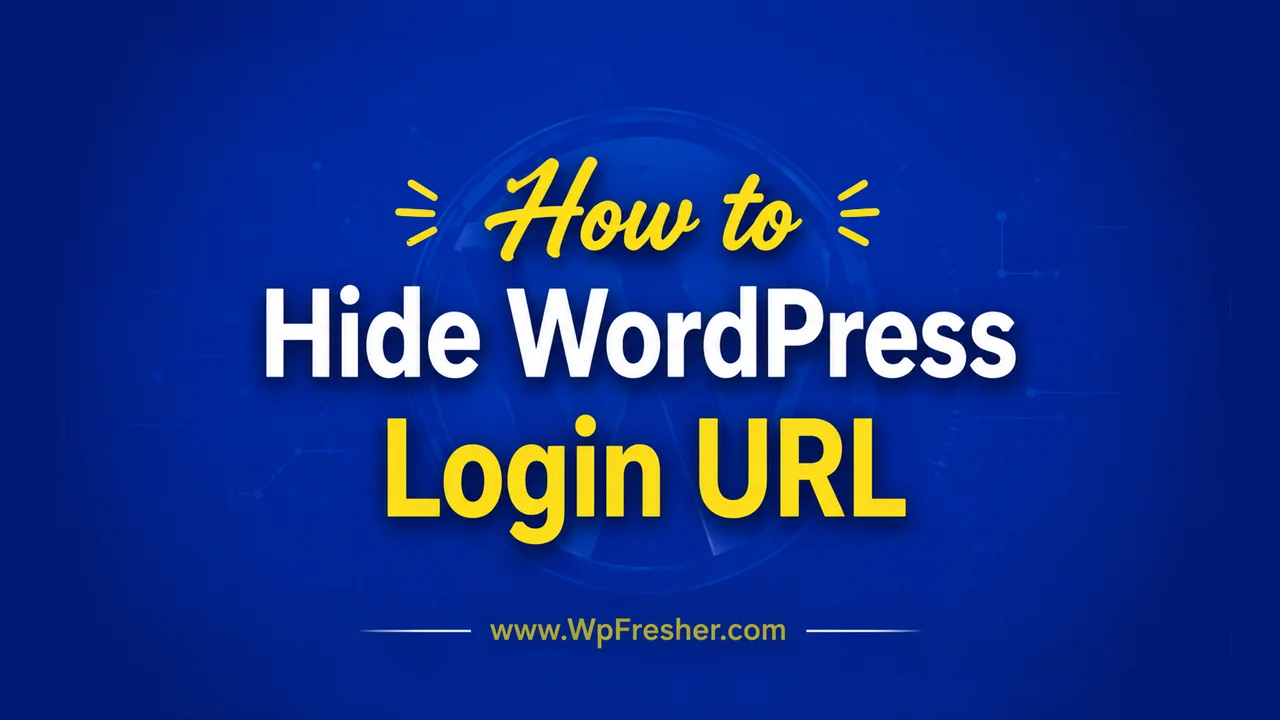
Are you looking for an easy way to “Hide WordPress Login URL”? WordPress powers millions of websites around the world, making it one of the biggest targets for automated attacks. One of the most common entry points attackers try to access is the default WordPress login page, usually located at /wp-admin/ or /wp-login.php.
Because these URLs are publicly known, bots constantly scan websites and attempt brute force login attacks. A simple way to reduce these attempts is to hide or change the default login URL.
One of the easiest ways to do this is to use the WPS Hide Login plugin, a lightweight, widely used WordPress security plugin. According to the official plugin description, it safely changes the login page URL without modifying WordPress core files.
In this guide, you will learn how to hide the WordPress login URL, why it matters, how the plugin works, and the best practices you should follow to improve your website security.
Why You Should Hide the Default WordPress Login URL
Every WordPress installation comes with the same login paths:
yourwebsite.com/wp-admin/yourwebsite.com/wp-login.php
Hackers and automated bots already know these URLs. They use scripts to repeatedly attempt logins using common usernames and passwords.
Changing the login URL does not make your website completely secure, but it helps reduce:
- Brute force attacks
- Spam login attempts
- Bot traffic
- Server resource usage caused by repeated login requests
It also adds an extra layer of protection by making your login page harder to discover.
Think of it like moving the entrance door of a building. The building still exists, but random visitors cannot immediately find the entrance.
What is WPS Hide Login?
WPS Hide Login is a lightweight plugin that allows you to change the default WordPress login URL to a custom URL of your choice.

The plugin does not rename WordPress core files or modify the WordPress installation itself. Instead, it intercepts login page requests and redirects users accordingly.
For example, instead of logging in through:
yourwebsite.com/wp-admin/You could use something like:
yourwebsite.com/my-login/Anyone trying to access the old login URL will either see a 404 page or be redirected elsewhere.
Benefits of Using WPS Hide Login
1. Lightweight and Fast
The plugin is extremely lightweight and does not slow down your website. It only handles login page requests.
2. No Core File Changes
Unlike some older methods, this plugin does not rename WordPress files or modify core code.
This means:
- Safer updates
- Better compatibility
- Easier maintenance
3. Beginner Friendly
You do not need coding knowledge. Everything can be configured from the WordPress dashboard.
4. Compatible With Most Plugins
The plugin works with many popular WordPress plugins and multisite installations.
5. Easy to Disable
If you deactivate the plugin, your website immediately returns to the default WordPress login URLs.
How to Hide WordPress Login URL Using WPS Hide Login
Step 1: Install the Plugin
Go to your WordPress dashboard:
Plugins → Add NewSearch for:
WPS Hide LoginInstall and activate the plugin.
You can also download it directly from the official plugin page: WPS Hide Login on WordPress.org
Step 2: Open General Settings
After activation, go to:
Settings → GeneralScroll down until you find the WPS Hide Login section.
Step 3: Create a Custom Login URL
You will see a field where you can enter a custom login slug.
Example:
secure-loginYour new login URL becomes:
https://yourwebsite.com/secure-loginChoose something unique and difficult to guess.
Avoid using:
- login
- admin
- wp-admin
- dashboard
Instead, use custom names that are hard to predict.
Step 4: Save Changes
Click the “Save Changes” button.
Your old login URLs will stop working.
Important:
Bookmark the new login URL immediately so you do not forget it.
What Happens to wp-admin and wp-login.php?
After configuration:
/wp-admin/becomes inaccessible for unauthenticated users/wp-login.phpno longer displays the login form
The plugin redirects or blocks these requests depending on the configuration.
Best Practices When Choosing a Custom Login URL
Your new login URL should:
- Be unique
- Be difficult to guess
- Avoid obvious words
Good examples:
/myportal//control-access//hidden-entry/
Bad examples:
/login//admin-login//wordpress-login/
A predictable login slug defeats the purpose of hiding the login page.
What to Do If You Forget the Login URL
This happens more often than people expect.
If you forget the custom login URL, you can disable the plugin manually.
Method 1: Using File Manager
Go to:
wp-content/plugins/Rename the plugin folder:
wps-hide-loginto something like:
wps-hide-login-disabledThe plugin will automatically deactivate, and the default login URL will work again.
Method 2: Using FTP
You can do the same thing through FTP software like FileZilla.
Is Hiding the Login URL Enough for Security?
No.
Changing the login URL is only one layer of security.
It helps reduce automated attacks, but it does not fully secure your WordPress website. Security experts recommend combining multiple protection methods.
You should also:
- Use strong passwords
- Enable two factor authentication
- Keep plugins updated
- Use security plugins
- Limit login attempts
- Use secure hosting
- Regularly back up your website
Important Security Notes
Like any plugin, WPS Hide Login has had security vulnerabilities reported in older versions. Security databases show several login page disclosure issues in previous releases. Updating to the latest version fixes known vulnerabilities.
Because of this, always:
- Keep the plugin updated
- Remove unused plugins
- Monitor security alerts
- Use trusted plugins only
Running outdated plugins can expose your website to unnecessary risks.
Common Problems and Solutions
1. Login Page Returns 404
This usually happens because:
- Permalinks need refreshing
- Cache needs clearing
- Security plugins conflict
Solution:
- Go to Settings → Permalinks
- Click Save Changes
- Clear all cache
2. Redirect Loops
Some caching or security plugins may conflict with custom login URLs.
Try:
- Temporarily disabling cache plugins
- Excluding the login URL from cache
- Updating all plugins
3. Multisite Issues
The plugin supports multisite installations, but custom configurations can occasionally create conflicts.
Test changes carefully before applying them to production sites.
Alternative Methods to Hide WordPress Login URL
Besides WPS Hide Login, some security plugins also offer login URL customization, including:
- Loginizer
- iThemes Security
- All In One WP Security
- Defender Security
However, many users prefer WPS Hide Login because it focuses on a single feature and remains lightweight.
Should You Hide the WordPress Login URL?
Yes, in most cases it is a good idea.
While it is not a complete security solution, hiding the login URL can:
- Reduce bot attacks
- Lower spam traffic
- Make brute force attempts harder
- Improve overall security posture
It is especially useful for:
- Business websites
- WooCommerce stores
- Membership sites
- Blogs with multiple users
- Client websites
If you’re ready to build something tailored and scalable, check out:
👉 Custom WordPress Plugin Development Service
Final Thoughts
The default WordPress login URL is one of the most targeted parts of any WordPress website. Changing it adds an extra layer of protection and helps reduce unwanted login attempts.
WPS Hide Login offers one of the simplest ways to hide the login page without modifying core files or affecting website performance.
The setup process only takes a few minutes, but it can significantly reduce automated attacks against your website.
Just remember:
- Keep your plugins updated
- Use strong passwords
- Combine multiple security practices
- Save your custom login URL safely
Security is never about a single plugin. It is about building several layers of protection that work together to keep your website safe.
Stay connected with us for more WordPress help, tips, tutorials, and articles at WpFresher.com. 🚀
Discover more from WPFresher
Subscribe to get the latest posts sent to your email.