WPFresher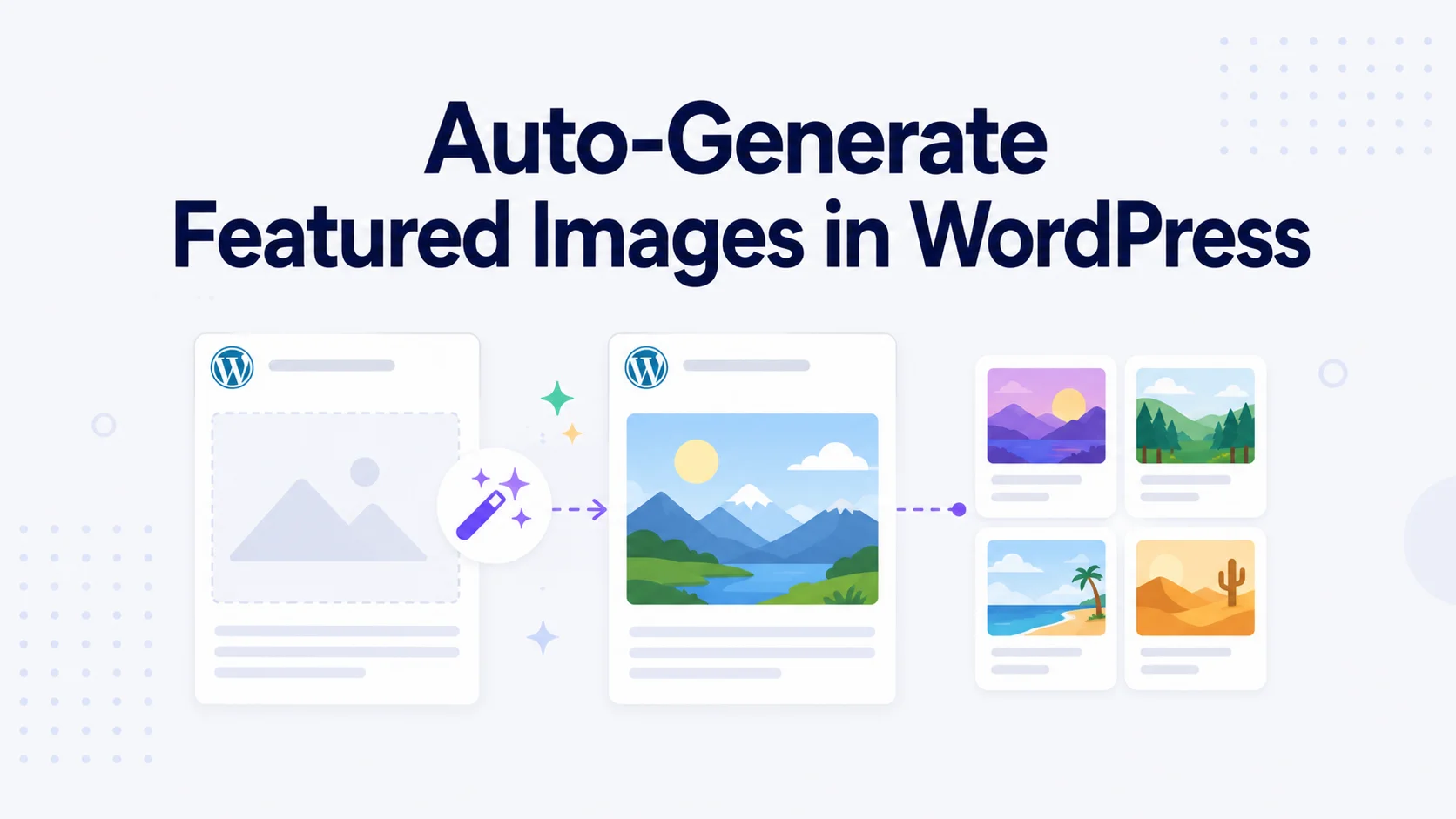
Every post needs a featured image. It’s the thumbnail on your blog page, the picture that shows up when someone shares your link, and a small but real signal to readers that your content is worth clicking.
The problem is that creating one for every single post gets tedious fast. Open a design tool, size it correctly, export it, upload it, set it as the featured image. Do that fifty times and it starts eating real hours. And the posts where you forget? They show up with blank spaces on your blog archive and ugly, image-less cards when shared on social media.
There’s a way to take this off your plate entirely. In this guide, I’ll show you how to automatically generate featured images in WordPress, so every post gets a clean thumbnail without you lifting a finger or opening Photoshop.
Why Featured Images Actually Matter
Before the how, a quick word on why this is worth automating rather than just skipping:
- They help your SEO. Visually rich content tends to earn more clicks, and featured images give you an extra spot to add descriptive, keyword-relevant alt text.
- They control how your links look when shared. When someone posts your article on social media, the featured image is usually what appears. No image means a flat, ignorable link.
- They boost engagement. A post with a thumbnail simply gets noticed more than a wall of text titles on your blog page.
- They keep your site looking consistent. A blog where every post has a clean image looks far more professional than one with random gaps.
So featured images earn their keep. The trick is getting them without the manual grind.
The Manual Way (and Why It Wears Thin)
The traditional approach is to make each image yourself. For a flagship post where you want a custom graphic, that’s time well spent. But for routine posts, news updates, or a high-publishing blog, designing every thumbnail by hand is a slog.
The bigger issue is consistency. The moment you’re in a hurry and hit publish without setting an image, that post goes live looking broken on your archive and unshareable on social. Relying on memory to never forget a featured image is a plan that fails eventually.
This is where automation makes more sense.
The Automatic Way: Generate Featured Images on Publish
Instead of making thumbnails one by one, you can have WordPress create them for you whenever you publish. For this, I’ll use Image Generator – AI Featured Image, Thumbnail and Automatic Image Creator for WordPress, a free plugin that automatically generates a featured image for new posts and pages, so none of them ever go out bare.
Here’s how to set it up.
Step 1: Install the Plugin
In your WordPress dashboard, go to Plugins → Add New Plugin, search for Image Generator or beautifulplugis, then you will find the Image Generator plugin or a list of all available plugins of your search by the company name, then click Install Now and Activate.
Step 2: Make Sure Your Theme Supports Featured Images
Most modern themes already do, but it’s worth checking, because thumbnails won’t display without it. If your theme is missing support, it needs add_theme_support( 'post-thumbnails' ) in its functions file. If you’re using a mainstream theme, you can almost certainly skip this step.
Step 3: Configure Your Thumbnail Settings
Go to the Thumbnails menu in your admin panel. Here you can set how generated images look, including the style and dimensions, so they match your site’s layout and branding. Pick a size that fits how your theme displays featured images, and set it once.
Step 4: Let the Smart Fallback Cover You
One of the most useful parts is the fallback behavior: even if you publish a post without manually choosing an image, the plugin makes sure it still gets a thumbnail. That’s the safety net that stops bare posts from ever reaching your blog archive or a social share.
Step 5: Publish and Forget
That’s the whole setup. From now on, whenever you create a new post or page, a featured image is generated automatically. You can still set your own custom image any time you want one; the plugin simply handles every post you don’t.
It also supports custom post types, including WooCommerce products, and works alongside popular page builders and themes, so it fits whatever kind of site you run.
One Honest Note
Right now, the plugin generates images for new posts and pages going forward, not retroactively for your entire back catalogue. Bulk generation for existing posts is on the roadmap. So this is the tool you set up today to keep every future post covered, while you can still handle older posts manually if you want to fill them in.
Tips for Better Featured Images
Whether automated or manual, a few habits help:
- Keep dimensions consistent. Matching your theme’s expected size avoids awkward cropping.
- Don’t overcrowd them. A clean image with minimal text reads better at thumbnail size.
- Add alt text. It helps accessibility and gives search engines more to work with.
- Stay on-brand. Consistent colors and style make your blog feel cohesive.
Frequently Asked Questions
Not on its own, but a free plugin like Thumbnail Image Generator adds this. Once set up, it automatically creates a featured image for each new post and page so you don’t have to make and upload one manually every time.
Normally it appears blank on your blog archive and as an image-less card when shared. With an automatic thumbnail plugin and its fallback feature, every post gets an image even if you forget to set one.
Yes. Thumbnail Image Generator supports custom post types, including WooCommerce products, alongside regular posts and pages.
Currently, it handles new posts and pages going forward. Bulk generation for existing content is planned for a future update, so for now older posts can be filled in manually.
Indirectly, yes. They improve click-through and engagement, give you alt text to optimize, and control how your content looks when shared, all of which support your broader SEO efforts.
Final Thoughts
Featured images are one of those small details that quietly make a blog look professional, and one of the most tedious to keep up with by hand. Automating them means every post you publish looks complete, shares well, and fits your brand, without you opening a design tool at all.
If you’d like to try it, you can install Image Generator for free and have your next post’s thumbnail handled automatically. For more WordPress tips, browse the WPFresher blog, and let me know in the comments how you handle featured images right now.
Discover more from WPFresher
Subscribe to get the latest posts sent to your email.