WPFresher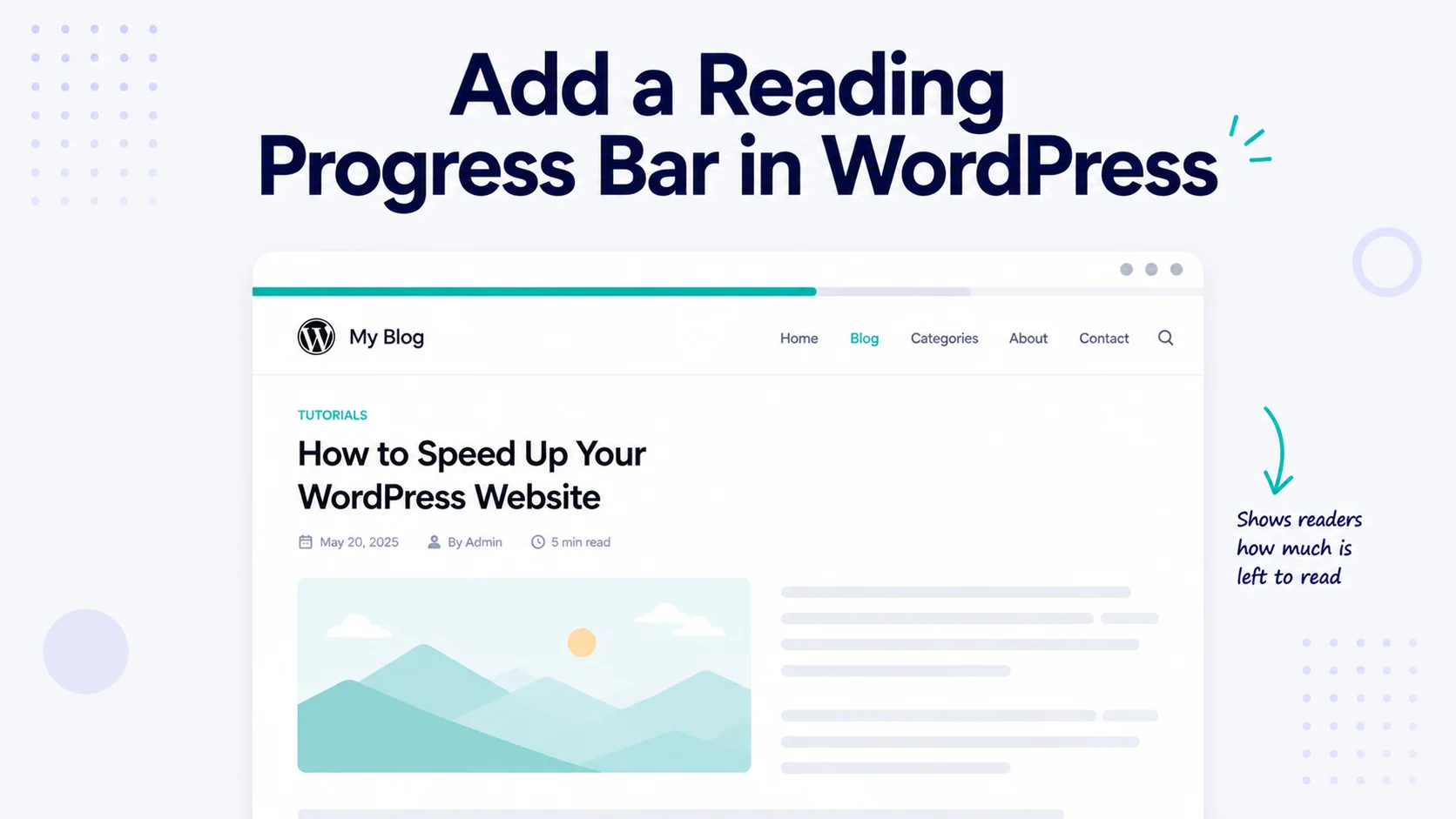
You’ve seen them on long articles: a thin bar, usually at the top of the screen, that fills up as you scroll down the page. That’s a reading progress bar, and it’s a small touch that does more than it looks like. It shows readers how far they’ve come and how much is left, which quietly encourages them to keep going instead of bailing halfway through.
For long blog posts, guides, and documentation, that little nudge can make a real difference to how many people actually reach the end. And you can add one to WordPress without writing a single line of code.
In this guide, I’ll show you how to add a reading progress bar to your WordPress posts in just a few minutes.
Why Add a Reading Progress Bar?
It’s a subtle feature, but it earns its place, especially on longer content:
- It encourages readers to finish. Seeing the end in sight helps people stick with a long article instead of giving up.
- It sets expectations. A reader can tell at a glance whether they’re looking at a quick read or a deep dive.
- It feels modern and polished. It’s a small design detail that makes a site feel considered and professional.
- It adds a sense of progress. That gentle feedback keeps people engaged as they move down the page.
It’s the kind of thing readers rarely notice consciously, but it nudges behaviour in your favour.
Why This Is Hard to Do by Hand
Building a reading progress bar from scratch isn’t a beginner job. You’d need JavaScript to track how far down the page someone has scrolled, some math to turn that into a percentage, and CSS to draw and animate the bar, then a safe place to keep all that code so a theme update doesn’t erase it.
That’s a fair bit of work for one visual feature. A block that handles it for you is far simpler, and it doesn’t touch your theme files.
The Easy Way: Use a Scroll Indicator Block
The simplest approach is a plugin that adds a scroll indicator block to your editor. For this guide, I’ll use Bloqra – Gutenberg Blocks & Page Builder for Block Editor, a free, lightweight Gutenberg blocks plugin with a Scroll Indicator block made for exactly this.

Here’s how to set it up.
Step 1: Install Bloqra
In your WordPress dashboard, go to Plugins → Add New Plugin, search for Bloqra, then click Install Now and Activate.
Step 2: Add the Scroll Indicator Block
Open the post where you want the progress bar, click the block inserter (the + button), search for Scroll Indicator, and add it. The block tracks the reader’s position on the page and shows their progress as they scroll.
Step 3: Customize the Style
Open the block’s settings to customise it. Bloqra’s Scroll Indicator comes with multiple icon styles and animations, along with controls for colors and appearance, so you can keep it subtle or make it a feature. You can also set click actions and visibility rules, which is handy if you only want the indicator to appear in certain situations.
Step 4: Show It Only Where It Helps
A progress bar makes the most sense on long content, not short posts. Using the block’s visibility options, you can keep it on the posts where it adds value, so it doesn’t clutter pages that don’t need it.
Step 5: Publish
When you’re happy with how it looks, publish or update the post. Your readers now get a live progress indicator as they move through your content.
Where a Progress Bar Helps Most
Reach for one on your longer content:
- In-depth blog posts and tutorials where readers commit real time
- Long-form guides and how-tos with lots of steps
- Documentation and knowledge-base articles
- Long sales or landing pages where you want people to reach the call-to-action
On short posts, it’s unnecessary, so save it for pages where the length makes progress worth showing.
Tips for Using It Well
- Keep it subtle. The bar should support the reading experience, not distract from it. A clean, on-brand color works best.
- Reserve it for long content. Use visibility rules so it appears where it helps and stays out of the way elsewhere.
- Match your design. Style it to fit your site rather than leaving it as a mismatched stripe.
- Don’t overdo the animation. A smooth, simple fill reads better than something flashy.
Frequently Asked Questions
No. The WordPress core editor doesn’t include a reading progress indicator. You can add one without code using a free blocks plugin like Bloqra, which provides a Scroll Indicator block for exactly this purpose.
Install a plugin that includes a scroll indicator block, add the block to your post, and customize its style. The block handles tracking the scroll position and animating the bar, so there’s no JavaScript or CSS to write.
It’s most useful on long content such as in-depth articles, tutorials, guides, documentation, and long landing pages. On short posts, it isn’t needed, so it’s best limited to longer pages.
Yes. Bloqra’s Scroll Indicator block includes visibility rules, so you can choose where the indicator shows rather than displaying it on every page.
Yes. Bloqra is free on WordPress.org and includes the Scroll Indicator block along with other lightweight blocks for the editor.
Final Thoughts
A reading progress bar is a small, low-effort upgrade that helps more of your readers reach the end of your longer posts. It sets expectations, adds a sense of momentum, and gives your site a polished feel, all without any code.
If you’d like to try it, install Bloqra for free and add a progress indicator to your next long post. For more WordPress how-tos, browse the WPFresher blog, and tell me in the comments which posts you’ll add it to.