WPFresher
Shortcodes are one of WordPress’s most useful features. Type something like [my_button] into a post, and it expands into a full button, a call-to-action, your contact details, or any other chunk of content you want to reuse. Write it once, drop it in anywhere.
The usual way to make your own, though, involves adding PHP to your theme’s functions.php file. That works, but it’s risky if you’re not comfortable with code, and your shortcode can vanish the moment you switch or update your theme.
There’s a safer, no-code way. In this guide, I’ll show you how to create and manage custom shortcodes in WordPress from a simple visual interface, so you can add reusable content across your whole site without touching a line of code.
What Is a Shortcode, and Why Use One?
A shortcode is a small tag in square brackets that WordPress replaces with something bigger when the page loads. You’ve almost certainly used one already, since many plugins give you shortcodes to embed their features.
Custom shortcodes are handy whenever you find yourself repeating the same content in multiple places:
- Reusable calls-to-action you want on many posts
- Contact details like a phone number or address that might change
- Custom buttons or promotional blocks
- Repeated snippets such as a disclaimer, a bio, or an offer
- Small bits of custom HTML you’d rather not paste over and over
The big advantage is maintainability. Update the shortcode once, and every page using it updates automatically. No hunting through dozens of posts to change one phone number.
The Traditional Way (and Its Downsides)
Normally, creating a shortcode means writing a PHP function and registering it with add_shortcode() in your theme’s files. For a developer, that’s quick. For everyone else, it means editing core files where a small mistake can break your site, and losing your shortcode if your theme updates unless you’ve set up a child theme.
For something you’ll want to create and tweak often, that’s more friction and more risk than necessary. A dedicated shortcode manager removes both.
The No-Code Way: Create Shortcodes From Your Dashboard
The easier approach is a plugin that lets you build and manage shortcodes from a visual interface. For this guide I’ll use Advanced Shortcode Manager, a free plugin that lets you create, edit, and organize all your shortcodes in one place, with no coding required.
Here’s how it works.
Step 1: Install Advanced Shortcode Manager
In your WordPress dashboard, go to Plugins → Add New Plugin, search for Advanced Shortcode Manager, then click Install Now and Activate.
Step 2: Create a New Shortcode
Go to Advanced Shortcode Manager → Shortcodes & Settings and click Add New Shortcode. Give your shortcode a name (this becomes the tag you’ll type, like [my_cta]), then add the content it should output using the built-in editor. This can be text, formatted content, custom HTML, or more advanced snippets with attributes and options.
Step 3: Save and Use It
Once you save, your shortcode is ready. Copy the tag and paste it into any post, page, or widget where you want the content to appear. WordPress replaces the tag with your content automatically when the page loads.
Step 4: Edit Anytime From One Place
Need to change something later? Head back to the shortcode manager, click Edit next to the shortcode, make your change, and save. Everywhere that shortcode is used updates at once. Managing everything from a single screen means you always know exactly which shortcodes exist on your site, instead of scattering them across theme files.
Step 5: Import and Export (Optional)
If you run more than one site, you can export your shortcodes and import them elsewhere, so you don’t have to rebuild the same ones from scratch. It’s a small feature that saves real time if you manage multiple websites.
Want to supercharge image geneation process more smarter? Try Image Generator Pro with the free verison of this pugin.
Where Custom Shortcodes Come in Handy
A few practical examples:
- A promo banner you drop into seasonal posts and remove in one edit when the sale ends
- Your business hours or address, updated once instead of on every page
- A newsletter call-to-action placed at the bottom of relevant articles
- A reusable author bio for a multi-author blog
Because the plugin works alongside the block editor, Elementor, and other major page builders, you can use your shortcodes wherever you build your content.
Tips for Using Shortcodes Well
- Name them clearly. A tag like
[contact_cta]is easier to remember than[sc1]. - Don’t overdo it. Use shortcodes for genuinely reusable content, not one-off text.
- Test after creating. Preview a page with the shortcode to confirm it outputs what you expect.
- Keep a mental map. Managing them in one place helps, but still avoid creating near-duplicates.
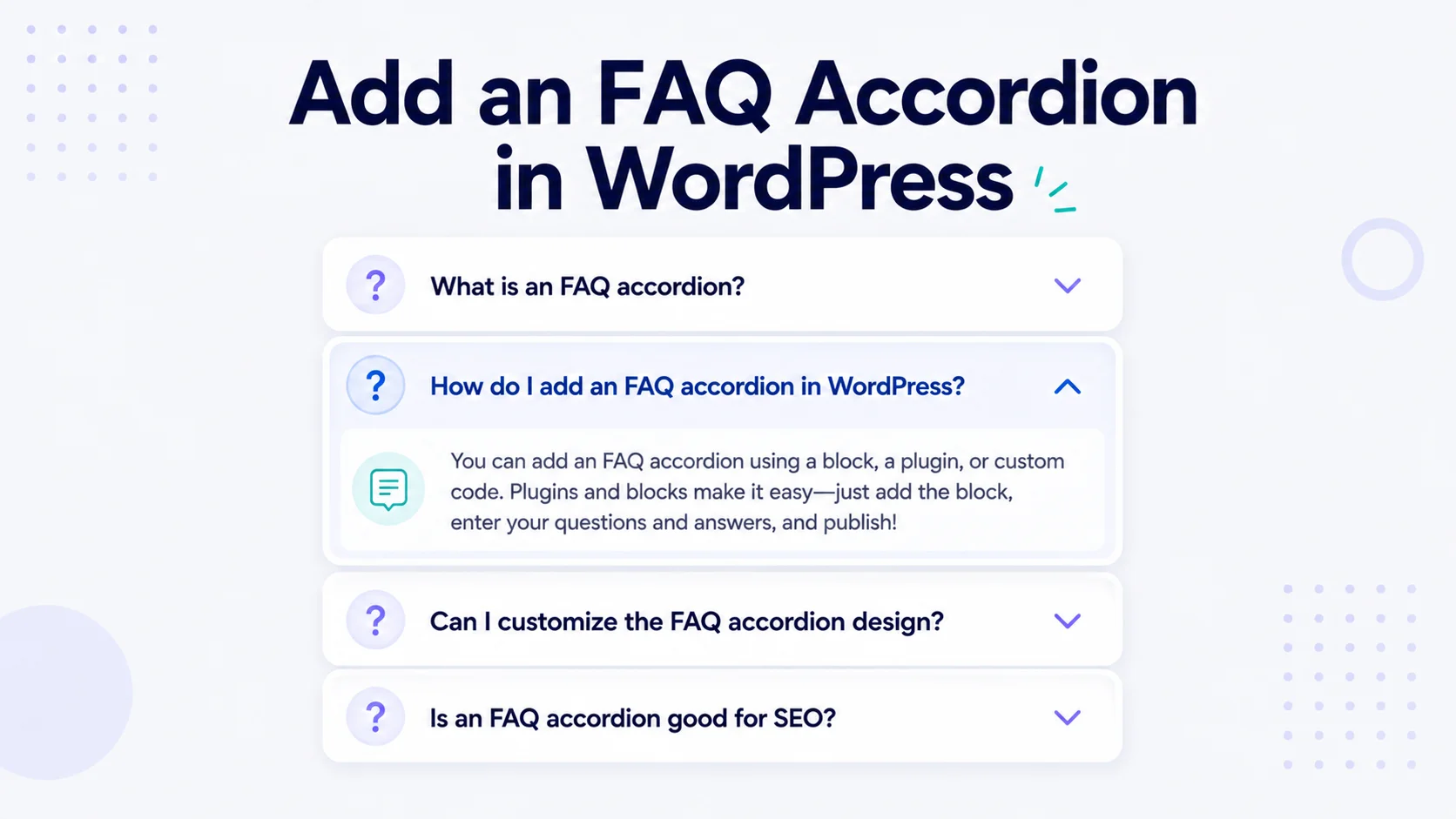
Frequently Asked Questions
A shortcode is a small tag written in square brackets, like [example], that WordPress replaces with larger content or functionality when the page loads. It lets you insert reusable elements without pasting the same content repeatedly.
Install a shortcode manager plugin like Advanced Shortcode Manager, go to its Shortcodes screen, click Add New, name your shortcode, and enter the content it should produce. Save it, then paste the tag into any post or page. No PHP required.
Yes. With a shortcode manager, you edit any shortcode from a single interface, and every place that uses it updates automatically when you save your changes.
Yes. Advanced Shortcode Manager is compatible with the block editor, Elementor, and other major page builders and themes, so you can use your shortcodes across your site.
Yes. Advanced Shortcode Manager is free on WordPress.org and lets you create, edit, manage, import, and export custom shortcodes without writing code.
Final Thoughts
Custom shortcodes are a simple way to keep reusable content consistent across your site, and you don’t need to edit theme files or write PHP to make them. With a shortcode manager, you can build, organize, and update them all from one screen, safely and without code.
If you’d like to try it, install Advanced Shortcode Manager for free and create your first shortcode in minutes. For more WordPress how-tos, browse the WPFresher blog, and tell me in the comments what you’d turn into a shortcode first.
Discover more from WPFresher
Subscribe to get the latest posts sent to your email.