WPFresher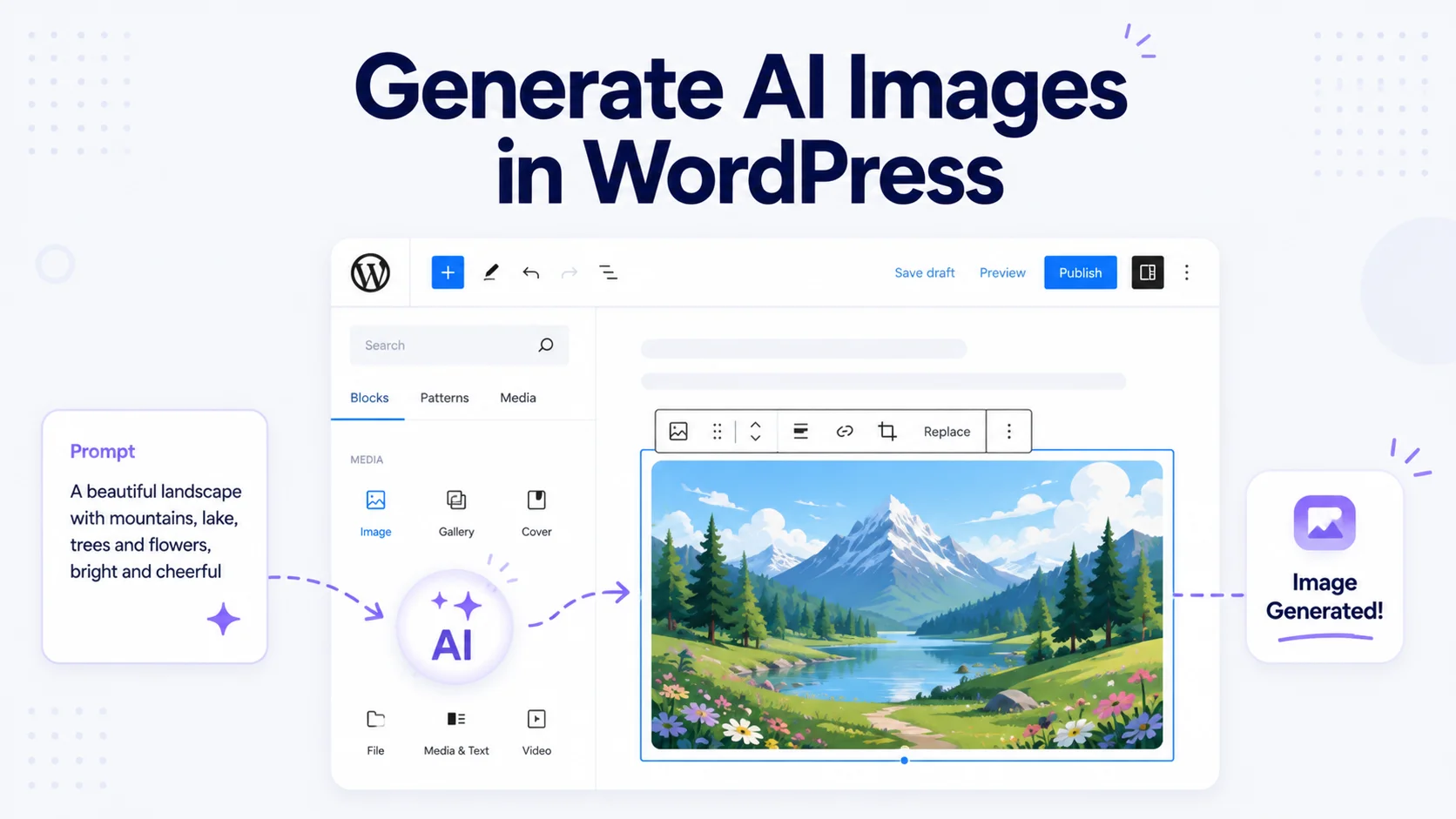
Finding the right image for a post is one of the quiet time-sinks of running a WordPress site. You dig through stock photo sites, worry about licensing, and often settle for something generic that a hundred other sites are also using.
AI image generation changes that. Instead of searching for a photo, you describe the image you want in plain words and get a custom one made for you. And you can do it right inside WordPress, without opening a separate tool or juggling downloads and uploads.
In this guide, I’ll show you how to generate AI images in WordPress directly from the block editor, plus a free way to create clean, on-brand images without any AI cost at all.
Why Generate Images With AI?
Making your own images with AI has some real advantages over hunting for stock photos:
- They’re unique. A generated image is made for your post, so it doesn’t show up on a dozen other websites.
- No licensing headaches. You’re not digging through usage rights or worrying about where a photo came from.
- It’s fast. Describe what you want, generate, done, all without leaving the editor.
- No design skills needed. You don’t need to know a design tool to get a polished result.
- On-brand consistency. With templates, every image can match your site’s colors and style.
Let’s set it up.
What You’ll Need
You need a WordPress site and a plugin that can generate images. For this guide, I’ll use Image Generator, a free plugin that creates images two ways: from a custom AI prompt using OpenAI’s DALL·E, and from reusable templates that render on your own server with no AI cost.
That distinction matters, so here’s the short version before we start:
- Template mode is completely free and runs on your server. Great for clean, on-brand post thumbnails.
- AI prompt mode creates unique images from a text description using DALL·E. It needs an OpenAI API key, and you pay OpenAI a small fee per image.
You can use either or both. Here’s how each works.
Step 1: Install Image Generator
In your WordPress dashboard, go to Plugins → Add New Plugin, search for Image Generator by BeautifulPlugins, then click Install Now and Activate.
Step 2: Create a Template (the Free Route)
Go to Image Generator → Image Templates and build at least one template. You can set the background color, text color, dimensions, fonts, and add an optional overlay image. This is what the plugin uses to render clean thumbnails from your post titles, entirely on your server, at no cost.
If you only ever use template mode, you can stop worrying about API keys completely. It’s a great option for everyday post thumbnails that stay on-brand.
Step 3: Add Your OpenAI API Key (for AI Images)
To generate unique images from prompts, the plugin uses OpenAI’s DALL·E, so you’ll need an API key. Create one in your OpenAI account, then either paste it under Image Generator → Settings, or, for better security, define it in your wp-config.php file so it never sits in your database.
Keep in mind you pay OpenAI directly for what you generate. As a rough guide, a standard DALL·E image costs only a few cents. The plugin itself stays free; you’re just covering the AI usage.
Step 4: Generate an Image While You Write
Here’s the part that makes this so smooth. Open any post or page in the block editor and you’ll find a sparkle button on the toolbar of Image and Media & Text blocks, plus a dedicated AI Featured Image panel in the document sidebar.
Click it, and a single window lets you choose between two tabs:
- Templates — pick a saved template; it defaults to using your current post title.
- Custom Prompt — describe the image you want and generate it with DALL·E.
Whichever you choose, the finished image is saved to your Media Library with alt text and either dropped into your block or set as the featured image automatically. No downloading, no re-uploading.
Step 5: Write a Good Prompt
With AI generation, your prompt is everything. Vague prompts give vague results. Be specific about the subject, style, and mood.
Instead of “forest,” try something like:
A sunlit forest path in autumn, photorealistic, soft warm lighting, fallen leaves
The more detail you give about style (photorealistic, illustration, flat design), lighting, and composition, the closer the result will match what you pictured.
Step 6: Let It Handle Featured Images Automatically
There’s also a hands-off option. When you publish a post without a featured image, the plugin can automatically render one from a random template using the post title. So even posts you forget about still go out with a clean thumbnail instead of a blank space. Because this uses templates, it works no matter which editor or page builder you use.
Want to supercharge image geneation process more smarter? Then try Image Generator Pro with the free verison of this pugin.
AI or Templates: Which Should You Use?
A simple rule of thumb: use AI prompt mode for hero images and standout posts where you want something unique and eye-catching, and use template mode for everyday thumbnails where consistency and zero cost matter more. Building three to five solid templates means the automatic fallback always looks on-brand.
Frequently Asked Questions
Only for AI prompt-based images. Template-based image creation, including the automatic featured image on publish, runs entirely on your own server with no API key and no cost. You only need an OpenAI key if you want unique AI-generated images from prompts.
The plugin is free. For AI images, you pay OpenAI directly for usage, which is only a few cents per standard image as of 2026. Template-based images are completely free.
By default it uses OpenAI’s DALL·E 3. You provide your own API key, and developers can point it at other compatible services using the plugin’s filters.
Yes. Block editor integration is the plugin’s main feature, with a generate button on Image and Media & Text blocks and an AI Featured Image panel in the sidebar. Automatic featured image generation also works with other editors and page builders.
Yes. Every image, whether AI-generated or template-rendered, is saved to your WordPress Media Library with alt text, so it works normally with your theme, SEO plugin, and image optimization tools.
Yes. It works with any public post type that supports featured images, including WooCommerce products and custom post types.
Final Thoughts
You no longer have to choose between generic stock photos and hours in a design tool. With a free plugin, you can generate unique AI images from a text prompt or clean on-brand thumbnails from templates, all without leaving the WordPress editor.
If you’d like to try it, you can install Image Generator for free and create your first image in minutes. For more WordPress how-tos, browse the WPFresher blog, and let me know in the comments what you end up generating.