WPFresher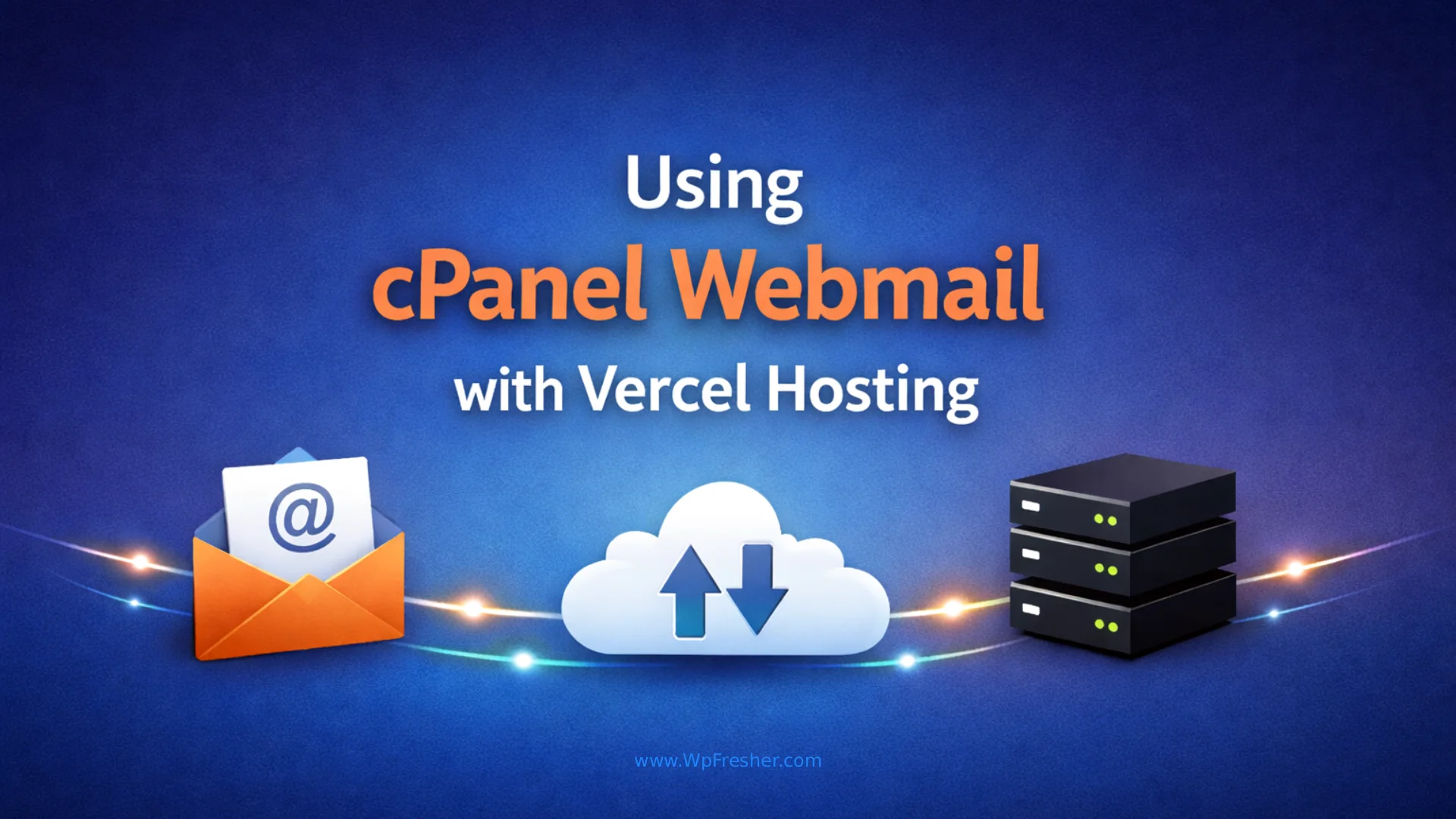
Running a modern website on Vercel while maintaining a professional email through cPanel is not only possible, it’s a common practice that combines the best of both worlds. This comprehensive guide will walk you through setting up cPanel webmail while your domain points to Vercel for website hosting.
What you’ll learn:
- How to configure DNS records for split hosting
- Setting up MX, SPF, and DKIM records correctly
- Troubleshooting common email delivery issues
- Best practices for domain management
Time required: 30-45 minutes
Difficulty level: Intermediate
Prerequisites: Domain registered with any registrar, cPanel hosting account, Vercel account
🚀 AI Content Writer – Create High-Quality Content in Seconds
AI Content Writer is a powerful WordPress plugin that helps you generate SEO-optimized articles instantly using AI. Whether you’re a blogger, marketer, or business owner, this plugin allows you to create, customize, and publish content directly from your WordPress dashboard—saving time and boosting productivity.
With features like automatic content generation, bulk article creation, auto-posting, and customizable writing styles, you can maintain a consistent publishing schedule without the usual effort. It’s like having a full content team working for you 24/7.
Ready to Grow Your Content Faster? Start creating smarter, not harder.
Try Free Version: AI Content Writer
Upgrade License: AI Content Writer Pro
Understanding Split DNS Configuration
What is Split DNS?
Split DNS allows you to use different hosting providers for different services on the same domain. In this case:
- Website hosting: Vercel handles your website
- Email hosting: cPanel handles your email
This works because DNS records serve different purposes:
- A/CNAME records direct web traffic to your website
- MX records direct email traffic to your mail server
Benefits of This Setup
Why use Vercel for websites:
- Lightning-fast global CDN
- Automatic HTTPS and SSL certificates
- Git-based deployment workflow
- Excellent performance for modern web frameworks
Why use cPanel for email:
- Full-featured webmail interface
- Unlimited email accounts
- Spam filtering and security features
- Email forwarding and autoresponders
- Access via IMAP/POP3 for desktop clients
Step-by-Step Setup Guide
Phase 1: Add Domain to cPanel
Even though your domain points to Vercel, you need to add it as an addon domain in cPanel for email management.
Steps:
- Log in to your cPanel account
- Navigate to the Domains section
- Click on Addon Domains
- Enter your domain details:
- New Domain Name: yourdomain.com
- Subdomain: Leave as auto-generated
- Document Root: Accept default or customize
- Click Add Domain
Success message: “You have successfully created the new ‘yourdomain.com’ domain”
Important note: Adding a domain to cPanel does NOT change where it points. Your DNS records control actual traffic routing.
Phase 2: Configure DNS Records in Your Domain Registrar
This is where the magic happens. You’ll configure your DNS to split traffic between Vercel and cPanel.
For GoDaddy Users:
- Log into GoDaddy
- Go to My Products → Domains
- Select your domain → Click DNS or Manage DNS
- Configure the following records:
Required DNS Records
1. A Record (Website – Points to Vercel)
- Type: A
- Name: @
- Value: Your Vercel IP (find this in the Vercel dashboard)
- TTL: 1 Hour
2. CNAME Record (WWW subdomain)
- Type: CNAME
- Name: www
- Value: cname.vercel-dns.com (or your specific Vercel CNAME)
- TTL: 1 Hour
3. A Record (Mail Subdomain – Points to cPanel)
- Type: A
- Name: mail
- Value: Your cPanel server IP (e.g., 142.4.198.208)
- TTL: 1 Hour
4. MX Record (Email Routing)
- Type: MX
- Name: @
- Value: mail.yourdomain.com
- Priority: 0
- TTL: 1 Hour
Critical: Your MX record should point to mail.yourdomain.com (which points to cPanel), NOT to your main domain (which points to Vercel).
Phase 3: Email Authentication Records
These records are essential for email deliverability and preventing your emails from being marked as spam.
Get Your Records from cPanel
- Log in to cPanel
- Search for Email Deliverability
- Click on your domain name
- You’ll see suggested records for SPF, DKIM, and DMARC
Add SPF Record
What is SPF? Sender Policy Framework tells receiving servers which IPs are authorized to send email for your domain.
In your DNS:
- Type: TXT
- Name: @
- Value: (Copy exactly from cPanel Email Deliverability)
- Example:
v=spf1 +mx +a +ip4:51.222.203.80 +include:spf.web-dns1.com - TTL: 1 Hour
Common mistake: Including the wrong IP address. Always use the exact SPF record from your cPanel.
Add DKIM Record
What is DKIM? DomainKeys Identified Mail adds a digital signature to your emails to authenticate them.
In your DNS:
- Type: TXT
- Name: default._domainkey
- Value: (Copy the long DKIM string from cPanel)
- Example:
v=DKIM1; k=rsa; p=MIIBIjANBg...(very long string) - TTL: 1 Hour
Pro tip: Use the copy button in cPanel to avoid errors. DKIM values are very long and must be exact.
Add DMARC Record (Optional but Recommended)
What is DMARC? Domain-based Message Authentication, Reporting & Conformance defines how to handle emails that fail authentication.
In your DNS:
- Type: TXT
- Name: _dmarc
- Value:
v=DMARC1; p=quarantine; adkim=r; aspf=r; rua=mailto:dmarc_rua@onsecureserver.net; - TTL: 1 Hour
Phase 4: Create Email Accounts
Now that DNS is configured, create your email accounts in cPanel.
Steps:
- In cPanel, go to Email Accounts
- Click Create
- Fill in the details:
- Username: support (becomes support@yourdomain.com)
- Password: Create a strong password
- Storage Space: Set quota or unlimited
- Click Create
Repeat for additional email accounts (info@, sales@, etc.)
Phase 5: Access Your Webmail
You can access your email in multiple ways:
Option 1: Direct Webmail Access
- URL:
https://webmail.yourdomain.com - Log in with your full email address and password
Option 2: cPanel Webmail
- URL:
https://cpanel-domain.com:2096 - Log in with email and password
Option 3: Email Client Configuration
For Outlook, Thunderbird, Apple Mail, or mobile devices:
Incoming Mail Server (IMAP):
- Server: mail.yourdomain.com or srv7.swhc.ca
- Port: 993 (SSL/TLS)
- Username: your full email address
- Password: your email password
Outgoing Mail Server (SMTP):
- Server: mail.yourdomain.com or srv7.swhc.ca
- Port: 465 (SSL) or 587 (TLS)
- Authentication: Required
- Username: your full email address
- Password: your email password
Troubleshooting Common Issues
Issue 1: Cannot Send Emails (Gmail Blocks)
Error message: “Your email has been blocked because the sender is unauthenticated. Gmail requires all senders to authenticate with either SPF or DKIM.”
Solution:
- Check your SPF record includes the correct sending IP
- Verify the DKIM record matches exactly what cPanel shows
- Common problem: Email sends from IP
68.168.119.164But SPF only lists51.222.203.80
Fix: Update SPF to include all sending IPs from cPanel’s Email Deliverability section.
Issue 2: Cannot Receive Emails
Checklist:
- MX record points to
mail.yourdomain.com(not the main domain) mail.yourdomain.comhas an A record pointing to the cPanel IP- Priority is set to 0
- The domain is added as an addon domain in cPanel
- The email account exists in cPanel
Issue 3: Emails Go to Spam
Solutions:
- Ensure SPF record is correct and includes all sending IPs
- Verify DKIM is properly configured and matches cPanel
- Add a DMARC record with an appropriate policy
- Check your domain reputation (use tools like MXToolbox)
- Avoid spam trigger words in subject lines
Issue 4: DNS Changes Not Working
Wait for propagation: DNS changes can take 1-48 hours to fully propagate globally, though usually it’s much faster with a 1-hour TTL.
Check propagation status:
- Use whatsmydns.net to check global DNS propagation
- Use MXToolbox.com to verify MX records
- Use the dig or nslookup commands
Test DNS:
# Check MX record
dig MX yourdomain.com

# Check A record for mail subdomain
dig A mail.yourdomain.com

# Check SPF record
dig TXT yourdomain.com
DNS Record Summary Table
| Record Type | Name | Value | Priority | Purpose |
|---|---|---|---|---|
| A | @ | Vercel IP | – | Website traffic |
| A | cPanel IP | – | Mail server location | |
| CNAME | www | Vercel CNAME | – | WWW subdomain |
| MX | @ | mail.yourdomain.com | 0 | Email routing |
| TXT | @ | SPF record | – | Email authentication |
| TXT | default._domainkey | DKIM key | – | Email signature |
| TXT | _dmarc | DMARC policy | – | Email policy |
Security Best Practices
Email Security
- Use strong passwords for all email accounts (16+ characters, mixed case, numbers, symbols)
- Enable two-factor authentication in cPanel if available
- Regularly update passwords every 90 days
- Monitor for suspicious activity in cPanel email logs
- Configure spam filters in the cPanel Email Filters section
DNS Security
- Enable DNSSEC if your registrar supports it
- Use reputable DNS providers for better reliability
- Regularly audit DNS records to ensure no unauthorized changes
- Lock your domain at the registrar level to prevent transfers
Email Client Security
- Always use SSL/TLS connections (ports 993, 465, 587)
- Never use plain text authentication (port 110, 143)
- Keep email clients updated to the latest versions
- Be cautious with email attachments and links
Advanced Configuration Options
Setting Up Email Forwarding
Forward emails from one address to another:
- In cPanel → Forwarders
- Click Add Forwarder
- Enter the source address and destination
- Save forwarder
Use case: Forward info@ to your personal email while keeping a professional address.
Creating Email Aliases
Multiple email addresses deliver to the same inbox:
- In cPanel → Email Accounts
- Find your account → Manage
- Scroll to Aliases
- Add alias addresses
Use case: Have both support@ and help@ deliver to the same inbox.
Autoresponders (Vacation Messages)
Set automatic replies when you’re unavailable:
- In cPanel → Autoresponders
- Click Add Autoresponder
- Configure email, subject, and message
- Set start/stop times
- Save autoresponder
Email Filters
Create rules to automatically organize incoming email:
- In cPanel → Email Filters
- Select email account
- Click Create a New Filter
- Set conditions (from, subject, contains, etc.)
- Set actions (move to folder, delete, forward)
Performance Optimization
Website Performance on Vercel
With your website on Vercel, you get:
- Global CDN: Content delivered from the nearest edge location
- Automatic optimization: Image optimization, compression
- Fast builds: Incremental static regeneration
- Zero-downtime deployments: Seamless updates
Email Performance on cPanel
Optimise email delivery:
- Proper authentication: SPF, DKIM, DMARC, reduces delivery time
- Clean sender reputation: Avoid spam complaints
- Regular maintenance: Delete old emails to keep mailboxes efficient
- Use IMAP: Better sync across devices than POP3
Cost Considerations
Typical Costs
Vercel:
- Free tier: Generous limits for personal projects
- Pro: $20/month for commercial projects
- Enterprise: Custom pricing
cPanel Hosting:
- Shared hosting: $3-15/month
- VPS hosting: $20-100/month
- Dedicated: $100+/month
Domain Registration:
- .com domains: $10-15/year
- Premium domains: Varies
Cost Comparison vs All-in-One
Traditional single hosting:
- Website + Email on one host: $10-30/month
- Limited performance, single point of failure
Split hosting (Vercel + cPanel):
- Better performance for the website
- Specialised email features
- Total: Similar or slightly higher cost
- Better reliability and performance
Frequently Asked Questions
Can I use any domain registrar?
Yes! This setup works with any registrar (GoDaddy, Namecheap, Cloudflare, Google Domains, etc.). The DNS configuration process is similar across all registrars.
Do I need to change nameservers?
No! You keep your registrar’s nameservers and just update individual DNS records. This gives you flexibility and control.
Will my website go down during setup?
No. You can configure everything first, then switch DNS records. There may be a brief propagation time, but no significant downtime.
Can I use a different email provider instead of cPanel?
Absolutely! This same method works with:
- Google Workspace (formerly G Suite)
- Microsoft 365
- Zoho Mail
- Any email hosting with MX records
Just point MX records to your email provider instead of cPanel.
How long does DNS propagation take?
With a 1-hour TTL, changes typically propagate within 1-2 hours. The maximum is usually 24-48 hours globally. Most users see changes within minutes.
Can I have multiple domains?
Yes! Repeat this process for each domain. In cPanel, add each as an addon domain. In DNS, configure records for each domain separately.
What if my cPanel and Vercel are on different accounts?
That’s fine! This setup is designed for exactly that scenario. They operate independently through DNS routing.
Is this setup secure?
Yes, when properly configured. Both Vercel and cPanel provide SSL/TLS encryption. Follow security best practices outlined in this guide.
Conclusion
Setting up cPanel webmail with Vercel hosting gives you the best of both worlds: lightning-fast website performance and full-featured professional email. While the initial setup requires careful DNS configuration, the result is a robust, scalable solution that efficiently serves both your website and email needs.
Key takeaways:
- Split DNS allows different providers for different services
- Correct MX record configuration is critical for email delivery
- SPF, DKIM, and DMARC are essential for email authentication
- This setup provides flexibility and better performance
- Regular maintenance ensures continued smooth operation
Next steps:
- Complete your DNS configuration
- Create your email accounts
- Test sending and receiving emails
- Configure email clients on your devices
- Set up email filters and forwarding as needed
Need help? Most registrars and hosting providers offer support for DNS configuration. Don’t hesitate to reach out to them with this guide for reference.
Related Articles
- How to Optimize WordPress for Speed and Performance
- How to Install WordPress (Step-by-Step Guide)
- How to Disable Plugin Update Notices in WordPress Admin Easily
Article Tags: cPanel, Vercel, email hosting, DNS configuration, web hosting, MX records, SPF, DKIM, DMARC, webmail, domain management, split DNS, email authentication, professional email, website hosting, cloud hosting, email deliverability
Stay tuned for more WordPress help, tips, tutorials, and articles at WpFresher.com. 🚀
Discover more from WPFresher
Subscribe to get the latest posts sent to your email.