WPFresher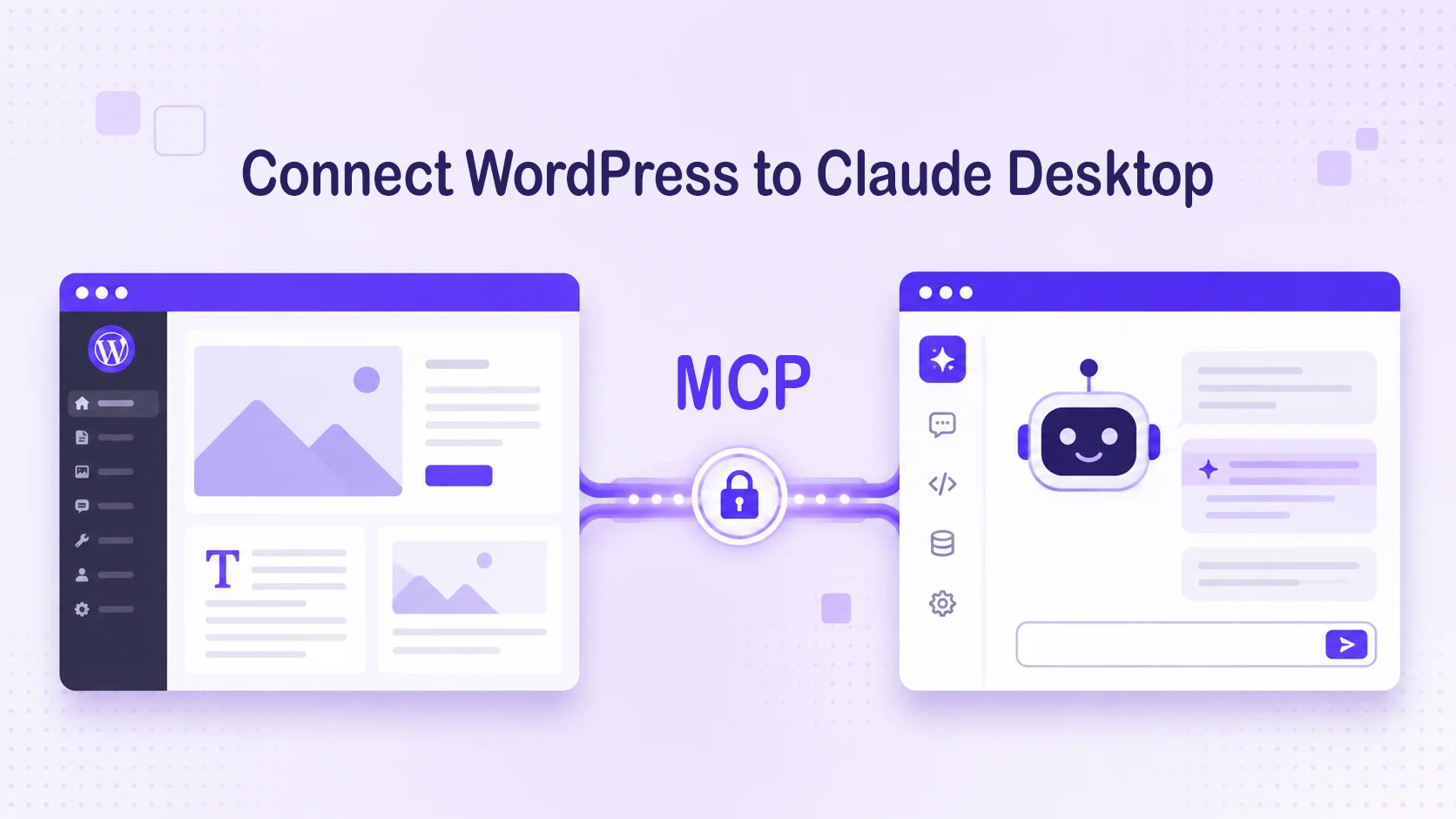
If you have read anything about WordPress and the Model Context Protocol lately, you have probably hit the same line I did: “Requires a WordPress.com account with a paid plan.” It is enough to make most self-hosted site owners close the tab and assume MCP is locked behind a subscription.
It is not.
That paid-plan requirement only applies to the MCP server that is built into WordPress.com hosting. If your site runs on your own hosting, your own domain, your own wp-content folder you take a completely different route, and that route is free. No WordPress.com plan, no Jetpack, no monthly fee. The catch is that it is a developer-style setup rather than a one-click toggle, so this guide walks through every step.
By the end, you will have Claude Desktop talking directly to your self-hosted WordPress site, able to read and manage content through plain English commands.
What MCP Actually Does (and Where the Paid-Plan Confusion Comes From)
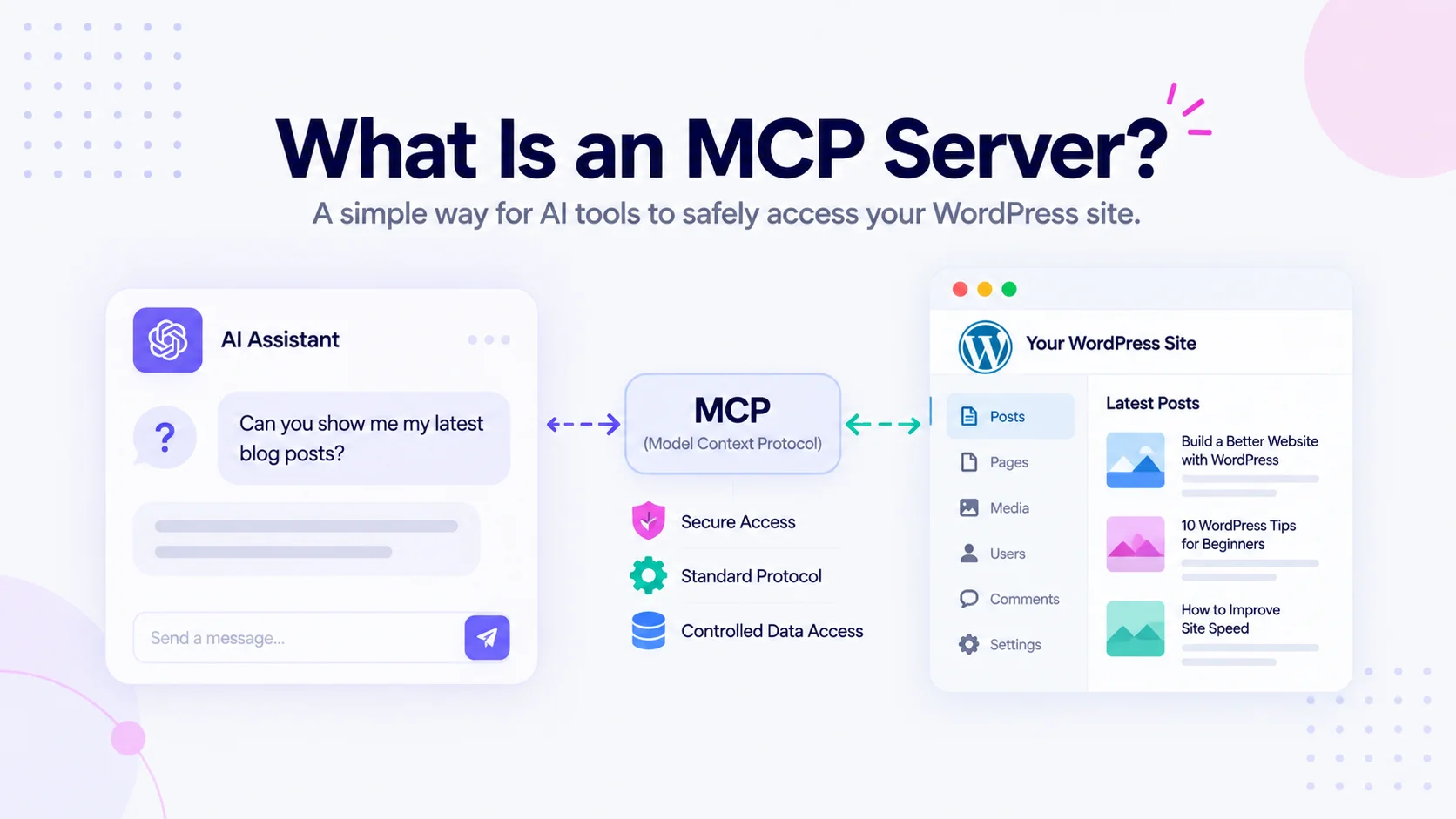
The Model Context Protocol is a standard way for AI applications to talk to outside systems. Instead of every AI tool needing a custom integration for every service, MCP gives them one shared language. For WordPress, that means an assistant like Claude can discover what your site can do and then do it, fetch posts, create drafts, update products, without you writing a custom script for each task.
There are two halves to the WordPress AI story, and mixing them up is what causes most of the confusion:
- The outbound side lets your WordPress site call AI providers. This is the AI Client that shipped in WordPress 7.0.
- The inbound side lets AI agents reach into your WordPress site. This is what you need to connect Claude Desktop, and it is handled by a separate plugin called the MCP Adapter.
The “paid plan” sentence floating around the web is only about WordPress.com’s hosted inbound server. For self-hosted sites, the inbound side is powered by a free, open-source plugin. That is the piece we are installing.
What You Will Need Before Starting
- WordPress 6.9 or higher and PHP 7.4 or higher
- Your site served over HTTPS (required for the authentication method below)
- Node.js installed on your computer, because the connection runs through a small local helper
- The Claude Desktop app
- Administrator access to your WordPress site
If you want to practice somewhere safe first, set this up on a local or staging copy of your site before pointing it at production.
Step 1: Install the MCP Adapter Plugin
The plugin you want is the official MCP Adapter maintained under the WordPress organization on GitHub (WordPress/mcp-adapter).
A quick but important note: there was an earlier plugin called Automattic/wordpress-mcp. It has been deprecated and archived, so do not install it. The MCP Adapter is the maintained replacement and has deeper integration with the underlying Abilities API.
Download the latest release as a ZIP, then in your WordPress dashboard go to Plugins → Add New → Upload Plugin, upload the file, install, and activate it. Once it is active, the plugin automatically registers a default MCP server on your site at this address:
/wp-json/mcp/mcp-adapter-default-serverYou will plug that full URL into Claude Desktop in a moment.
Step 2: Create an Application Password
Self-hosted sites do not yet have the streamlined OAuth login that WordPress.com offers, so you authenticate using an Application Password, a feature already built into WordPress core, and completely free.
In your dashboard, go to Users → Profile, scroll to the Application Passwords section, type a name you will recognize such as “Claude Desktop,” and click Add. WordPress shows you a generated password made up of several blocks of characters separated by spaces.
Copy it now and keep it somewhere safe. You only see it once, and you will paste it into your config in the next step. Leave the spaces exactly as they are, the connection handles them correctly.
Step 3: Configure Claude Desktop
Claude Desktop reads a small JSON configuration file that tells it which MCP servers to connect to.
Open Claude Desktop, go to Settings → Developer → Edit Config. This opens a file named claude_desktop_config.json. On Windows you can also find it directly at %APPDATA%\Claude\claude_desktop_config.json.
Add a server entry like this, replacing the placeholder values with your own:
json
{
  "mcpServers": {
    "mysite": {
      "command": "npx",
      "args": ["-y", "@automattic/mcp-wordpress-remote@latest"],
      "env": {
        "WP_API_URL": "https://yoursite.com/wp-json/mcp/mcp-adapter-default-server",
        "WP_API_USERNAME": "your-wp-username",
        "WP_API_PASSWORD": "xxxx xxxx xxxx xxxx xxxx xxxx",
        "OAUTH_ENABLED": "false"
      }
    }
  }
}
A few words on what is happening here. The npx command pulls in a small helper package that runs on your own machine. Its only job is to take the messages Claude speaks and translate them into the standard REST API calls your WordPress site understands, signing each one with your Application Password. Setting OAUTH_ENABLED to false tells it not to try the browser-based login flow, since you are using the password method instead.
The name you give the entry, mysite in the example, becomes the prefix on every tool, so you will end up with tools named along the lines of mcp__mysite__wp_add_post. Pick something short and clear.
Step 4: Restart and Verify
Fully quit and reopen Claude Desktop so it loads the new config. Then check the app’s MCP or connectors panel. Your site should appear in the list without any error icon.
The fastest way to confirm it is alive is to ask Claude something read-only, like requesting your five most recent published posts. If the titles come back, the connection is working end to end.
Troubleshooting the Usual Snags
Nothing connects and there is no clear error. Almost always this is broken JSON. A stray trailing comma or a missing bracket will fail silently. Paste your config into a JSON validator before restarting.
The server shows up but no tools appear. Double-check that the plugin is actually active and that your WP_API_URL points at the full server route ending in mcp-adapter-default-server, not just your bare domain.
npx is not recognized. Node.js is not installed or not on your system path. Install Node and try again.
Authentication keeps failing. Confirm your site is on HTTPS, that the username matches the account that generated the password, and that you copied the Application Password with its spaces intact.
Security: Begin With Read-Only
Connecting an AI agent to your live site is powerful, which is exactly why you should ease into it. The adapter can expose tools that write and even delete content, and delete operations can remove data permanently. Only enable destructive capabilities once you trust everyone who has access to this connection.
A sensible first move is to keep things limited to reading and drafting, watch how the assistant behaves for a while, and expand permissions gradually. Treat the Application Password like any other credential: store it securely, and revoke it from your profile the moment you no longer need it.
What You Can Actually Do Once It Is Connected
This is where the setup pays off. With the link live, you can hand Claude tasks in plain language instead of clicking through wp-admin:
- Draft, edit, and schedule posts directly from a conversation
- Pull up recent content for a quick audit or rewrite
- Manage WooCommerce products and orders if your store data is exposed
- Run bulk content cleanups and bulk metadata updates
- Ask questions about your live site content and get answers grounded in real data rather than guesswork
For anyone juggling content production, the appeal is obvious: fewer tabs, fewer manual steps, and a single conversational surface for work that used to be scattered across screens.
Frequently Asked Questions
No. The paid requirement only applies to WordPress.com’s hosted MCP server. Self-hosted sites use the free MCP Adapter plugin.
Yes. The plugin is open source, Application Passwords are part of WordPress core, and the connecting helper is a free package. Your only real cost is the time to set it up.
It can be, because the connection respects your WordPress user permissions and you decide which capabilities to expose. Start read-only and expand carefully.
Yes. A local or staging install is actually the recommended place to test before connecting your production site.
Use the MCP Adapter (WordPress/mcp-adapter). The older Automattic/wordpress-mcp plugin is deprecated.
Wrapping Up
The “paid plan” headline scares off a lot of self-hosted users who would have no trouble with the actual setup. Yes, the self-hosted path asks you to install a plugin, generate a password, and edit a config file, but none of that costs money, and once it is done, you have a direct, free line between your own WordPress site and Claude Desktop.
Set it up on a staging site first, keep it read-only until you trust it, and then start handing off the repetitive WordPress work you have been doing by hand.
Discover more from WPFresher
Subscribe to get the latest posts sent to your email.